Intercom
Intercom lists every LANovo display and every EchoLocal device on your network, found automatically. Open it from the dock or the Apps screen.
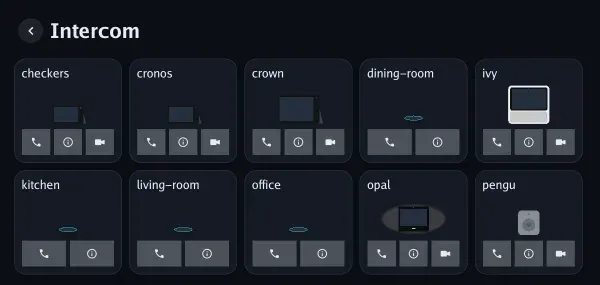
Tap the phone button for audio or the camera button for video. Video needs a camera on both ends. During a call: mute, camera off, hang up.
Answering
Section titled “Answering”Tap to answer. Every option is under Settings → Connected services → Intercom and in Home Assistant:
| Setting | Default | |
|---|---|---|
| Incoming calls | Accept calls | On |
| Auto-answer | Answer automatically | Off |
| Answer from | Auto-answer Everyone, or Selected: the devices you pick under Panels, the Home Assistant users you pick under Users, and calls from the web page when Auto-answer API calls is on | Everyone |
| Auto-answer with camera on | Send video when auto-answering | Off |
| Pause wake word during calls | On | |
| Video stream | Main or sub stream | Main |
| Ring, Video ring, Ringback | Tones, including custom ones | Ring, Ring, Ringback |
The Call and Call with sensors in Home Assistant show the call in progress.
You can also call by voice (“call the kitchen”, see Voice triggers) or
from Home Assistant with the call action.
Calling from Home Assistant
Section titled “Calling from Home Assistant”With the EchoLocal integration, the display’s card has a phone button: call the display from a dashboard in a browser or the Home Assistant app, with audio or video. Sound and video go straight between the browser and the display, so the browser has to be on the same network.
During a video call, the button beside hang-up, or a double-click on the picture, goes full screen.
The display sees who is calling by their Home Assistant user. To have it answer some of them on its own, set Answer from to Selected and pick them under Users. The list shows the people in Home Assistant that are linked to a user, under Settings → People.
Device details
Section titled “Device details”The info button on a device shows its model, whether it’s in this home, its address and version, and what it can do: calls, video calls, broadcasts, settings sync.
Home key
Section titled “Home key”Set the same Home key on every display under Settings → System, or with
text.<device>_home_key in Home Assistant. Devices with the same key are In this home; any
other device shows Not in this home and can’t call this one, be called, or send it broadcasts.
Devices with no key at all count as one home. The key itself never crosses the network.
Config sync copies it.
Broadcasts
Section titled “Broadcasts”A broadcast is a short voice message played on every other device in this home at once. Say “broadcast” to your assistant and speak after the tone; it stops when you go quiet, after at most 30 seconds. Or say “broadcast dinner is ready” and the words are spoken for you. A ding says it was sent, the failure sound that it wasn’t.
The receiving devices chime, show who it’s from, and play it. A device on a call or ringing an
alarm skips it. Turn Receive broadcasts (switch.<device>_receive_broadcasts, on by default)
off in Home Assistant to stop taking them.
From Home Assistant, the broadcast action takes a message: leave it empty to record from this
display’s microphone, or give the address of an audio clip to send.