Dashboards
The dashboard is what the display shows when you’re using it. There are two kinds, and you pick one in Settings → Display → Dashboard:
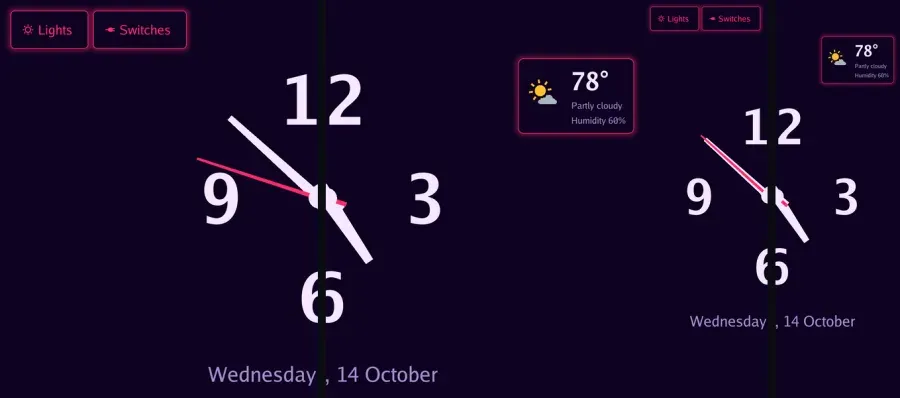
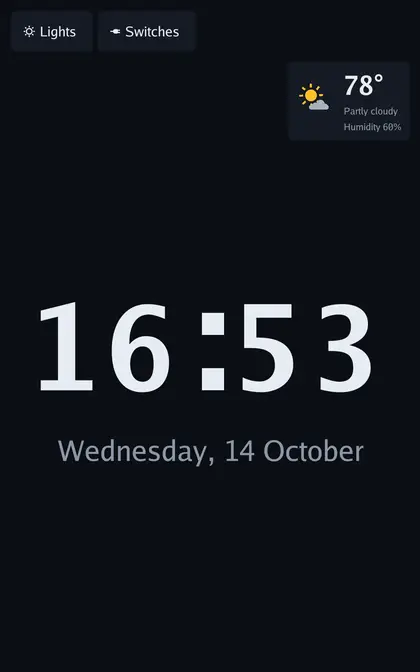
- Native: a big clock, the weather, and tabs for your lights, switches and cameras
- Tessera: pages of tiles you lay out in Home Assistant
Native
Section titled “Native”The native dashboard is a clock with the date, an optional weather card, and optional wallpaper from Immich behind it. Pick the clock face, position, size and color under Settings → Display → Dashboard → Clock.
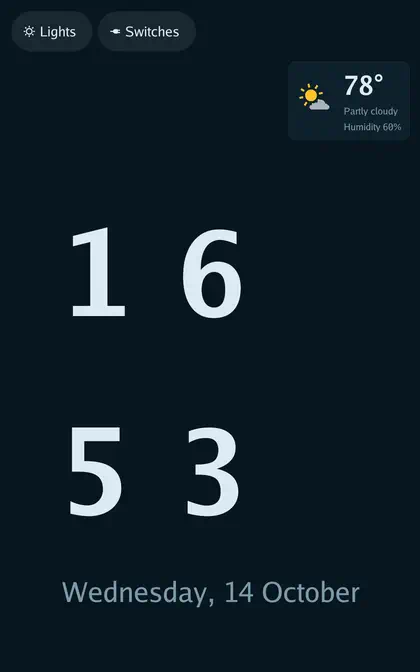
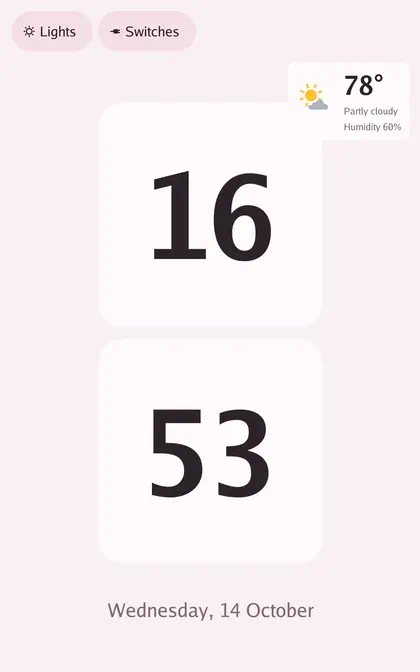
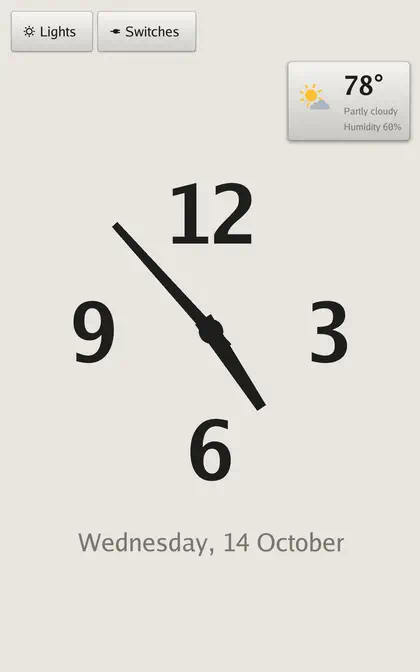
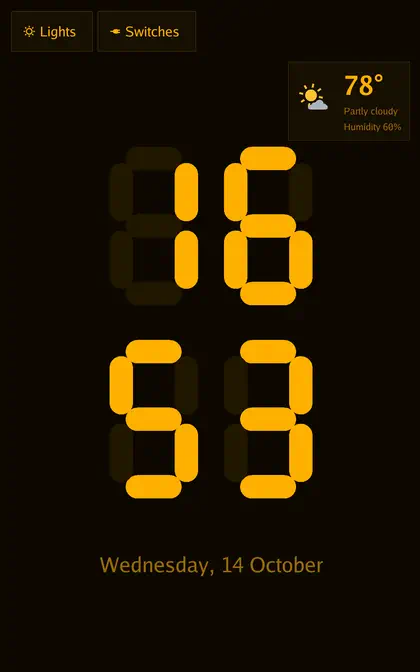
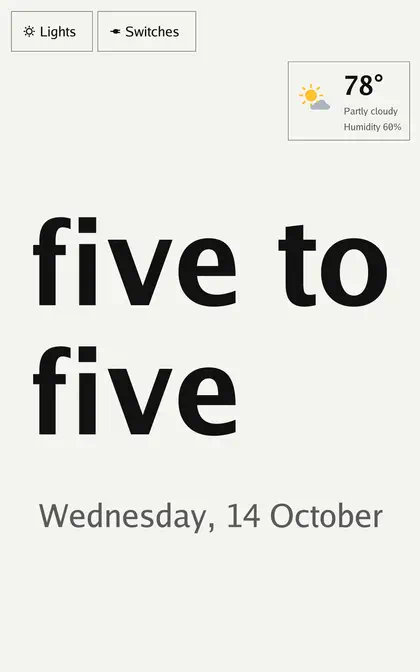
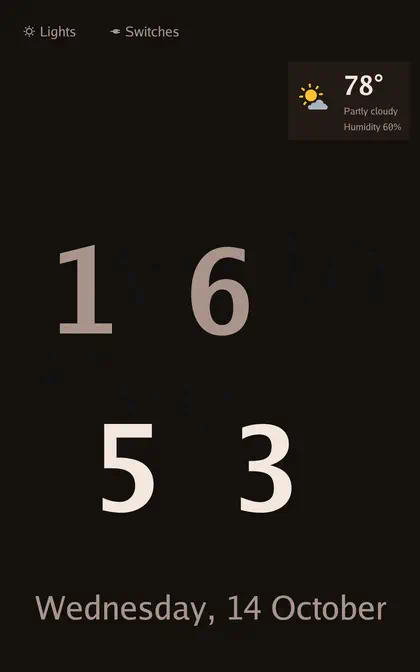
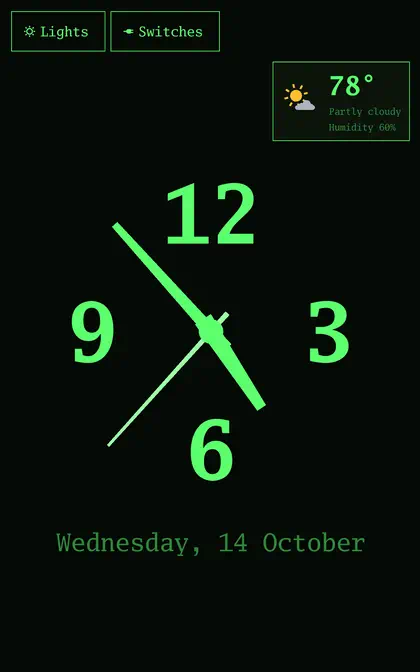
Lights and switches
Section titled “Lights and switches”Open Settings → Home control → Native → Lights (or Switches) and turn on Enable; the dashboard gains a Lights (or Switches) tab. Select devices picks what goes on it by label, by area or one by one, and Group by area sets how it’s grouped:
- Every device on its own card
- Areas with a few devices on one card
- Every area on one card
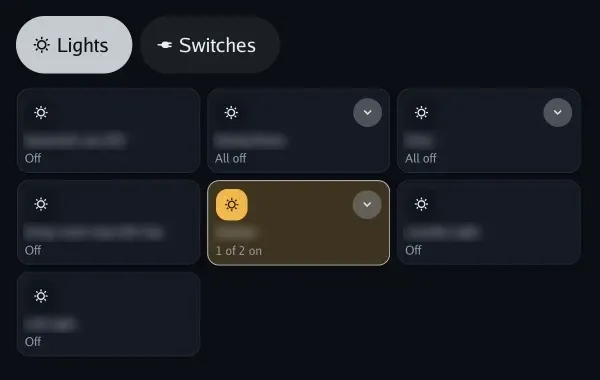
The same cards open full screen from the Lights and Switches apps on the Apps screen.
Cameras
Section titled “Cameras”Turn on Settings → Home control → Cameras → Dashboard tab and the dashboard gains a Cameras tab with the pictures from the Cameras app. Tap a camera to watch it full screen.
Weather
Section titled “Weather”Pick a Home Assistant weather entity under Settings → Home control → Weather, then choose how it looks on the dashboard and on the screen saver: Compact, Stack, Card, Detail, Icon or Words, with or without animation, in the weather’s colors or the theme’s, and where it sits. The dashboard and the screen saver each have their own layout.
Weather alerts replaces the card with severe and extreme US warnings from the National Weather Service until you dismiss them. Every weather setting is on Settings on the screen.
Tessera
Section titled “Tessera”Tessera is a Home Assistant integration with a drag-and-drop editor for touch screens. LANovo speaks its screen protocol, so the display shows up in Tessera like any other screen. Lay out the pages there; the display draws them in your style and theme.
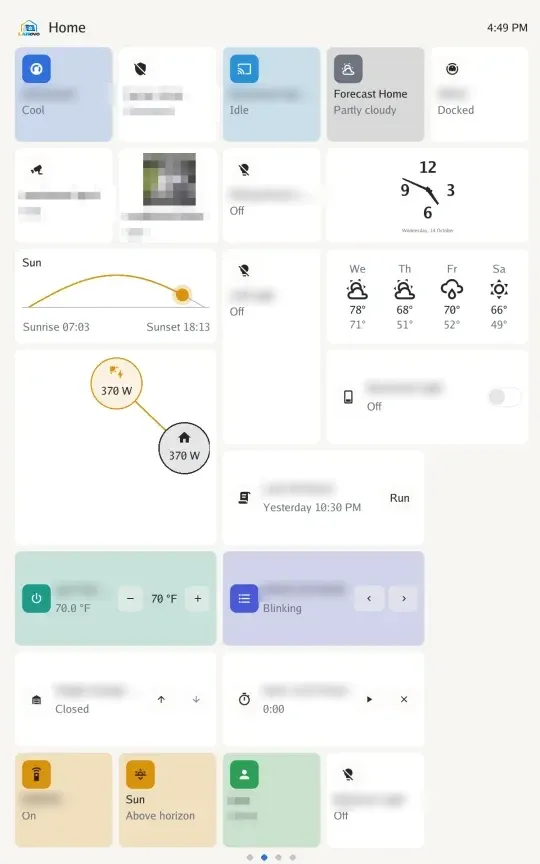
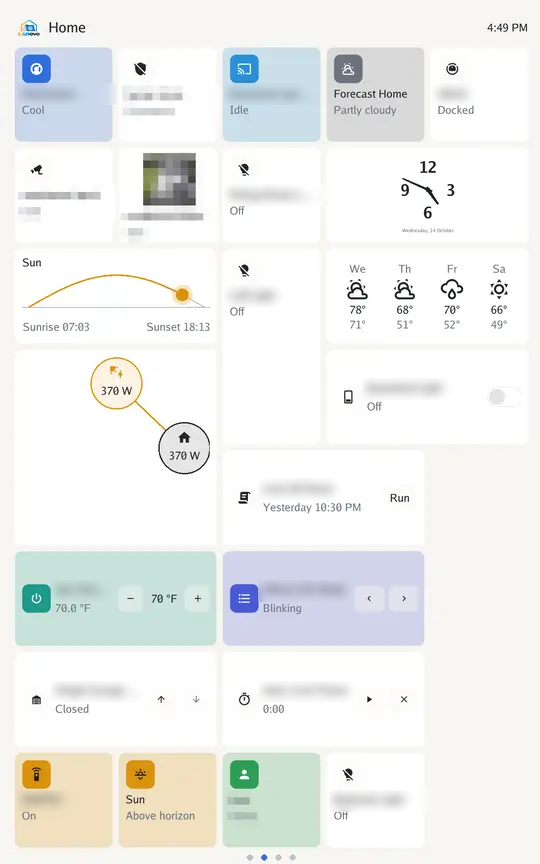
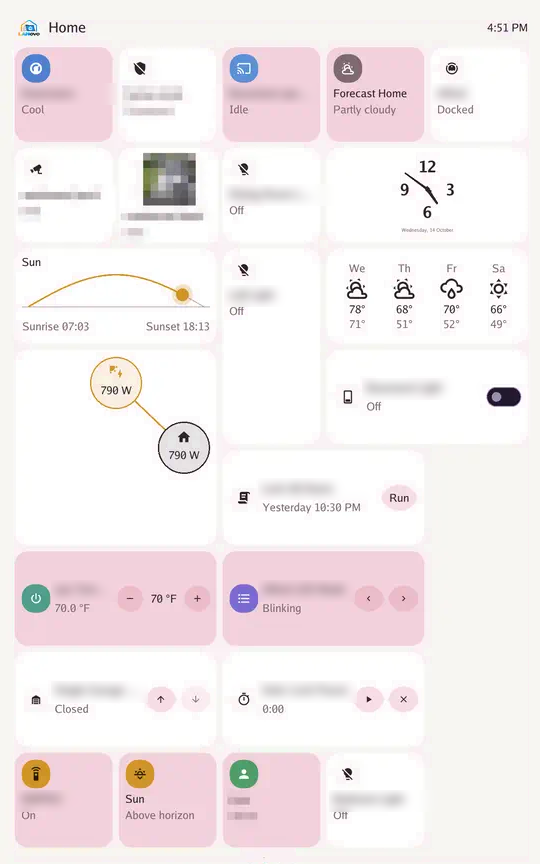
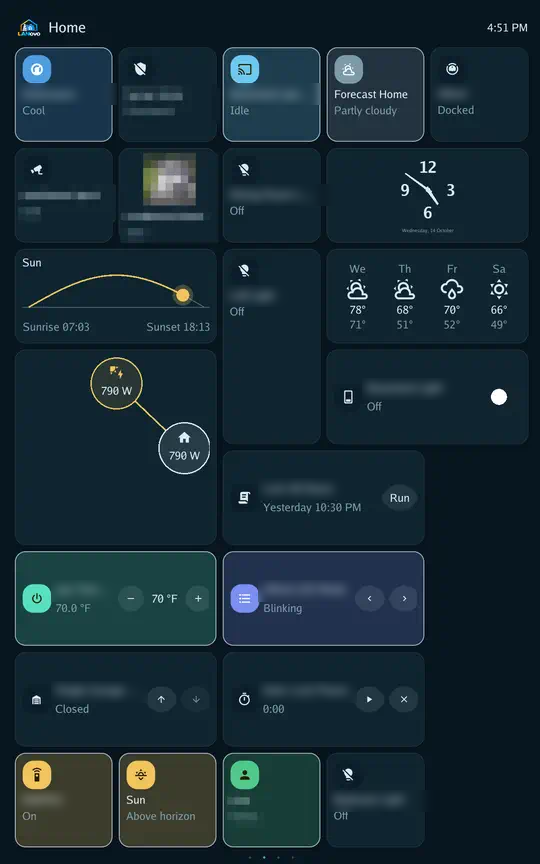
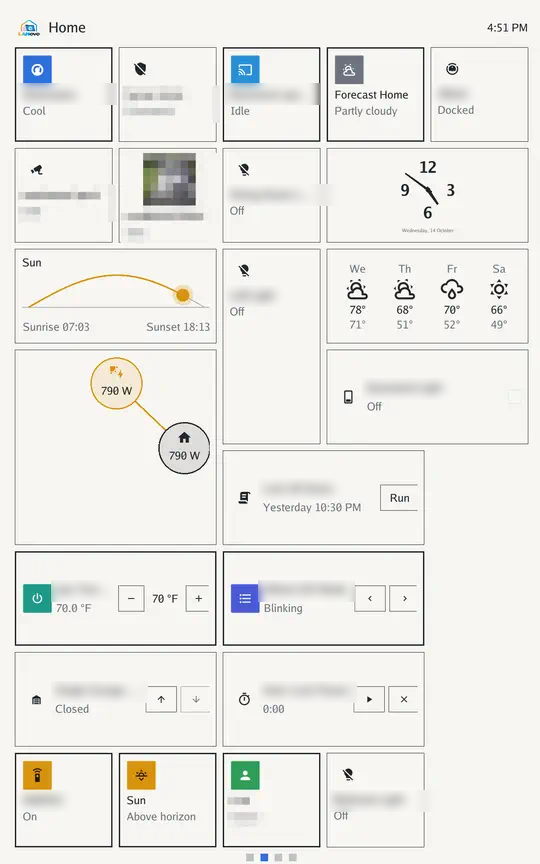
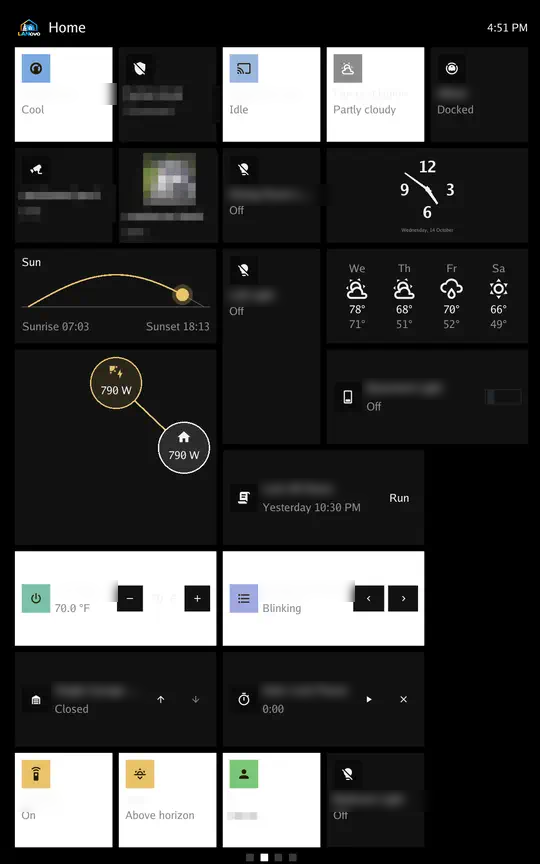
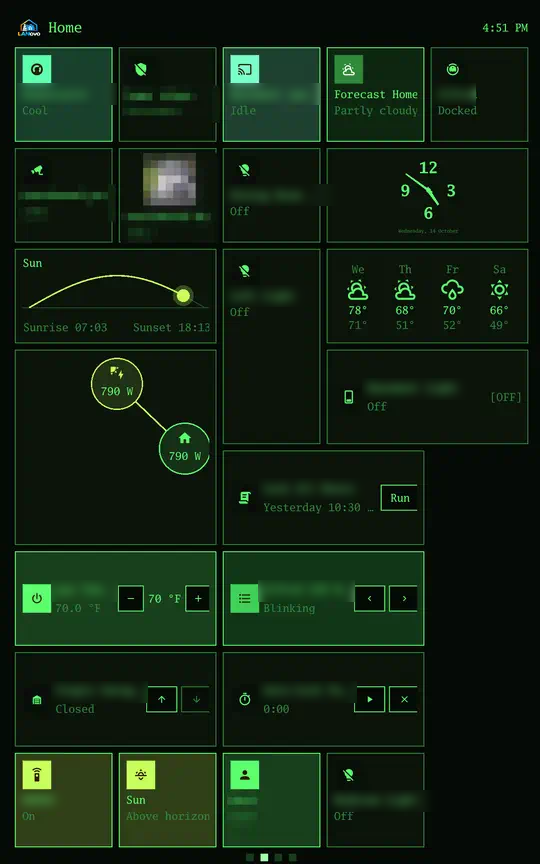
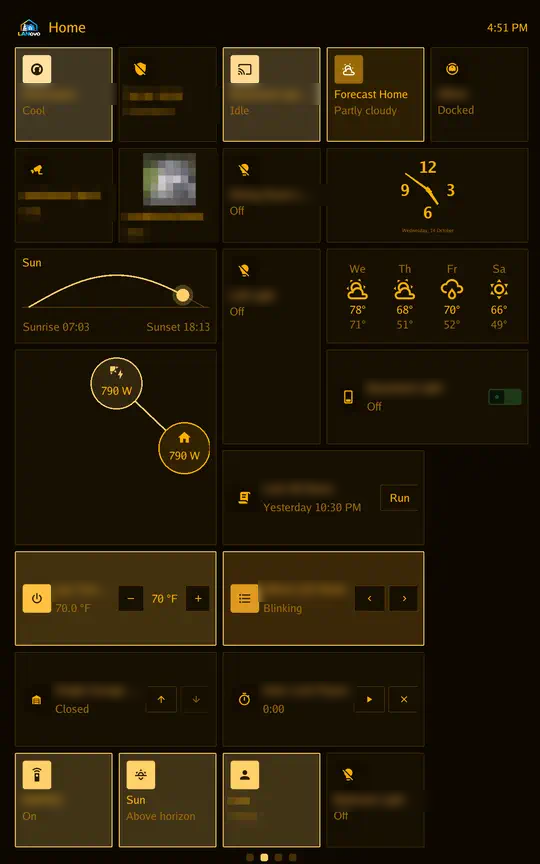
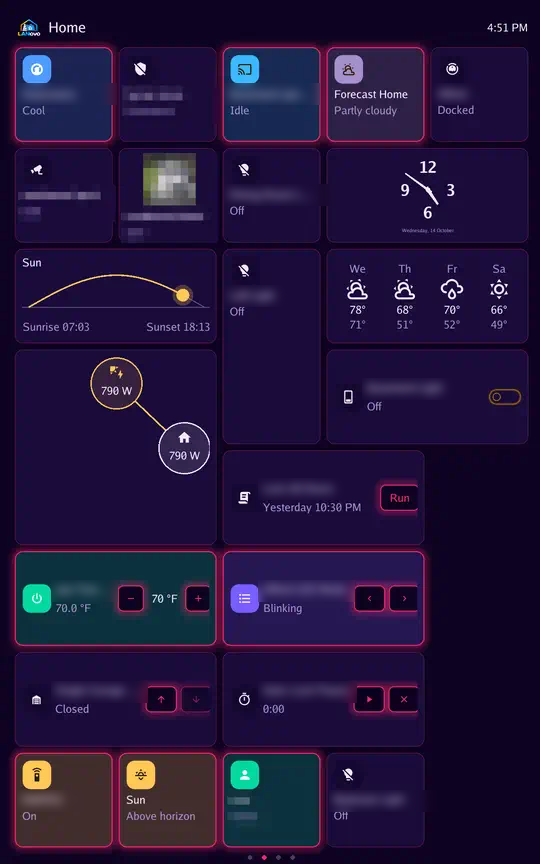
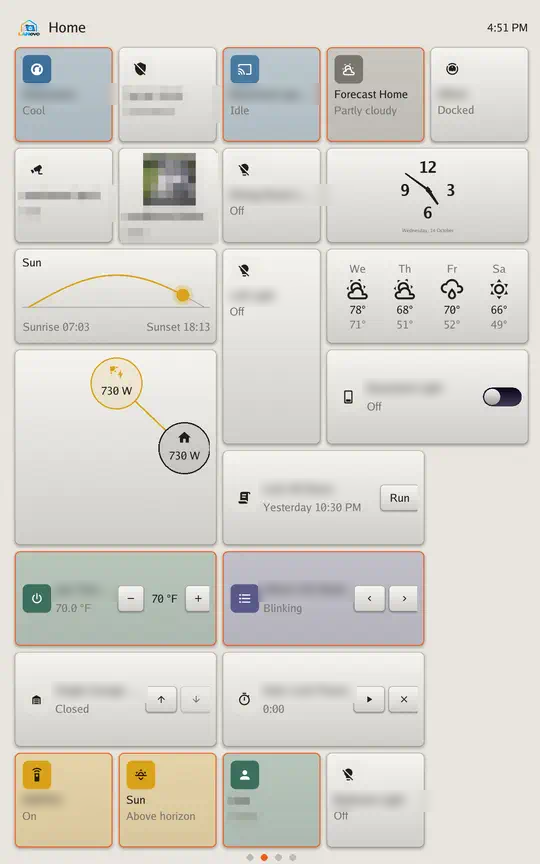
Most of Tessera’s tiles and features are supported.
Set it up
Section titled “Set it up”-
Install Tessera in Home Assistant from its GitHub page.
-
On the display, set Settings → Display → Dashboard to Tessera.
-
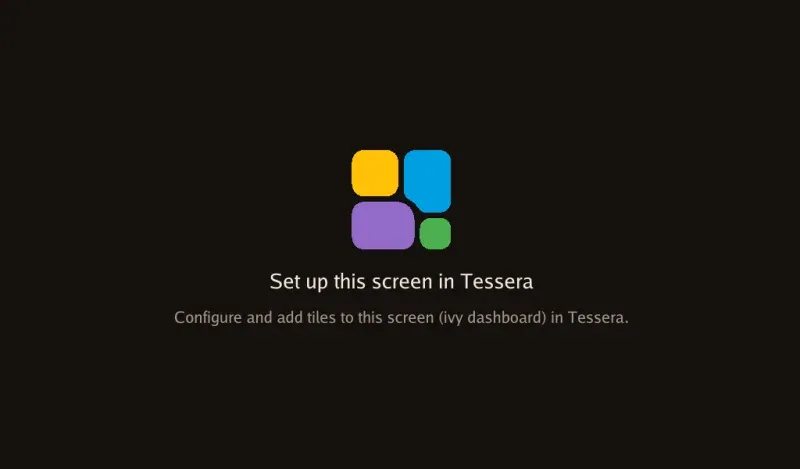
The display appears in Tessera as a screen. Without tiles it shows:
-
Add pages and tiles in Tessera’s editor. They show up on the display.
The Smart Display 10, Smart Display 8 and ThinkSmart View appear as two screens, one for landscape and one for portrait, so you can lay each out for the way the display is standing. The others appear as one.
Settings → Home control → Tessera sets the tile grid, which orientations to offer, and whether the display goes back to the first page after the screen saver. The screen saver can be a Tessera page too: Settings → Display → Screen saver → Mode.
Rotation
Section titled “Rotation”The Smart Display 10, Smart Display 8 and ThinkSmart View rotate automatically. The dashboards, settings, camera and everything else turn with them.