Getting around
The dashboard
Section titled “The dashboard”Most of the time the display shows your dashboard: Tessera pages of Home Assistant tiles, or a big clock with the weather and your Home Assistant lights and switches. See Dashboards.
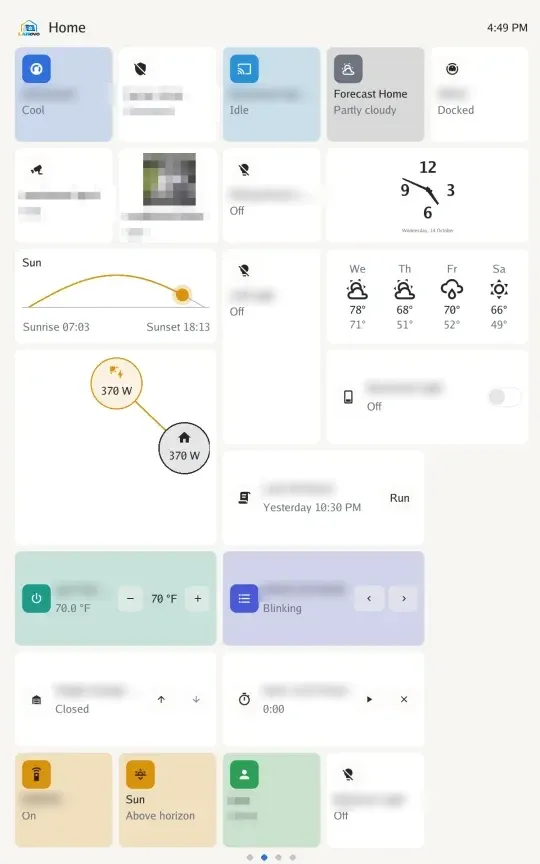
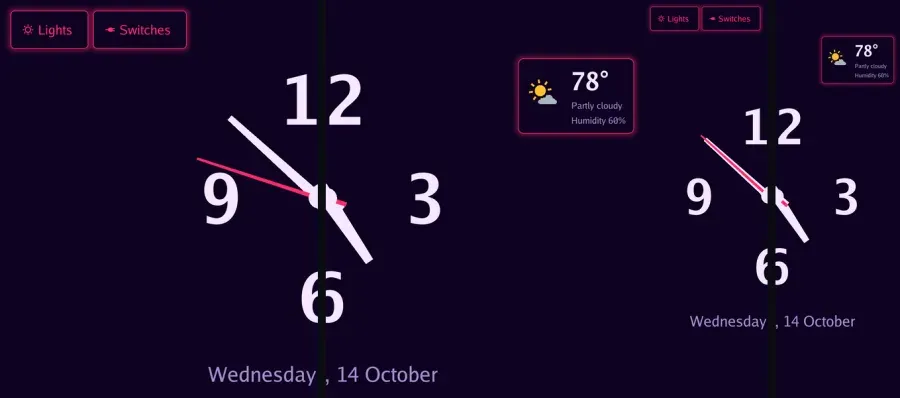
Swipe left and right to move between Tessera pages, or tap the tabs on the native dashboard.
The dock
Section titled “The dock”The dock sits on the right edge of the screen. It has:
- Settings (the gear): every option on the display
- Apps (the grid): every app, see Apps
- Your starred apps, like Intercom, the player or the shopping list
- Sleep (the moon): start the screen saver now
Settings → Display → Dock position moves it to the left, top or bottom edge. Hide dock after hides it after 5 seconds to a minute without a touch; swipe in from its edge to bring it back.
Volume buttons
Section titled “Volume buttons”Each press changes the volume by 5%. A volume panel pops up on the side of the screen and shows the level. Tap the circle at the top of the panel to see every volume (media, alarms, the assistant and system sounds) and pick which one the buttons change.
Settings → Sound → Volume buttons sets what the buttons change otherwise:
- What’s playing, the default: the volume of what you’re hearing. A ringing alarm or timer comes first, then the assistant or a call, then music and video, and the main volume when nothing is playing. With the player card, a video or a call on screen, the buttons change that volume, even while paused. The panel opens on the volume they change.
- Main volume: the main volume, always.
The panel can sit on the left or right. Change it in Settings → Display → Volume panel position.
Tap to dismiss
Section titled “Tap to dismiss”Tap to close the screen saver, a message, a ringing timer or alarm, or the voice assistant.