
Add it to Home Assistant
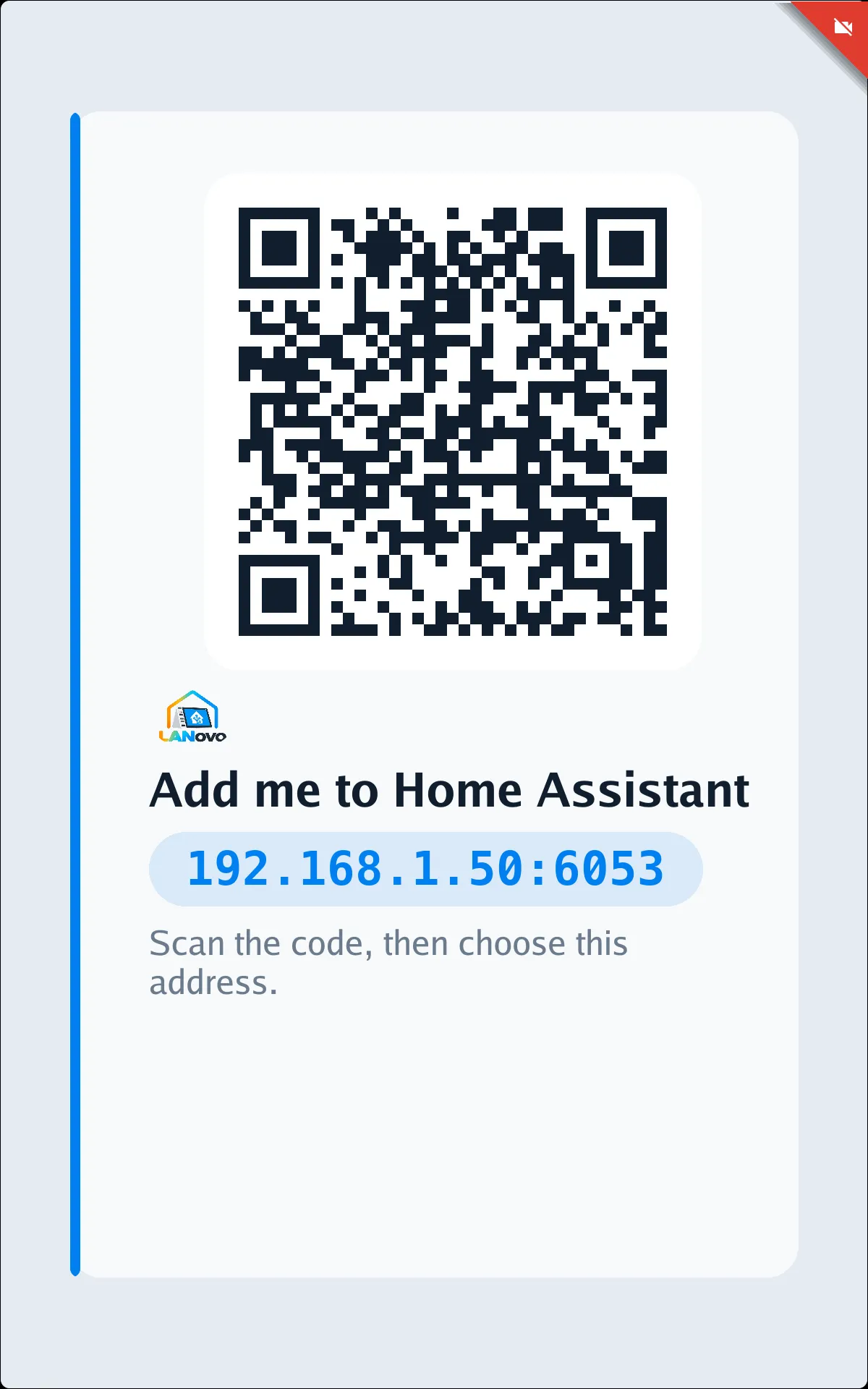
Until Home Assistant adds it, the display shows this:
Add it
Section titled “Add it”-
Scan the code with your phone. It opens Home Assistant’s “add ESPHome device” screen.
-
Enter the address shown under the code, like
192.168.1.50:6053. -
Submit. No password or key; the display and Home Assistant set up the key themselves.
In Home Assistant
Section titled “In Home Assistant”The display is one device with these parts:
| Part | Contents |
|---|---|
| Screen | Brightness, theme, clock face, screen saver, wallpaper |
| Microphone | Gain, leveling, noise suppression, room and stop word sensitivity |
| Playback | Now playing, chimes, and volumes for main, media, voice, alerts and system sounds |
| Camera | Snapshot camera, RTSP switch, username and password, picture settings |
| Assistant 1 and Assistant 2 | Wake word, pipeline, sensitivity and sound |
| Voice triggers | Switches for the voice actions and commands |
| Dashboard, Landscape, Portrait | Tessera, when it’s in use |
The media player and the privacy switch sensors sit on the display itself.
Plus sensors for ambient light, presence, the privacy switches, temperature, memory and Wi‑Fi signal.
Encryption key
Section titled “Encryption key”If you installed with ./lanovo install --generate-key, Home Assistant asks for a key. Get it with:
./lanovo keyNext: getting around, or the optional EchoLocal integration, which adds a dashboard, a card for every display and Fleet.