
In a browser
Every display has its own web page. Open its address in a browser on the same network:
https://192.168.1.50/The plain http:// address sends the browser on to it.
Signing in
Section titled “Signing in”The page asks for the admin password. The display makes one up the first time it starts.
Find it on the display under Settings → Network & internet → Web access, along with the address.
Tap the eye to show it, or type a new one there. The same password is the Admin password
(frontend_password) entity in Home Assistant, hidden until you reveal it.
A sign-in lasts 30 days and renews itself while you use the page. Changing the password signs every browser out. After five wrong passwords in ten minutes, the page stops accepting tries from that browser’s address for a while.
Scripts sign in too; see the API.
The certificate
Section titled “The certificate”Out of the box the display uses a certificate it made itself, so the browser warns that the connection isn’t private the first time. Accept it once and the warning stays away for that browser.
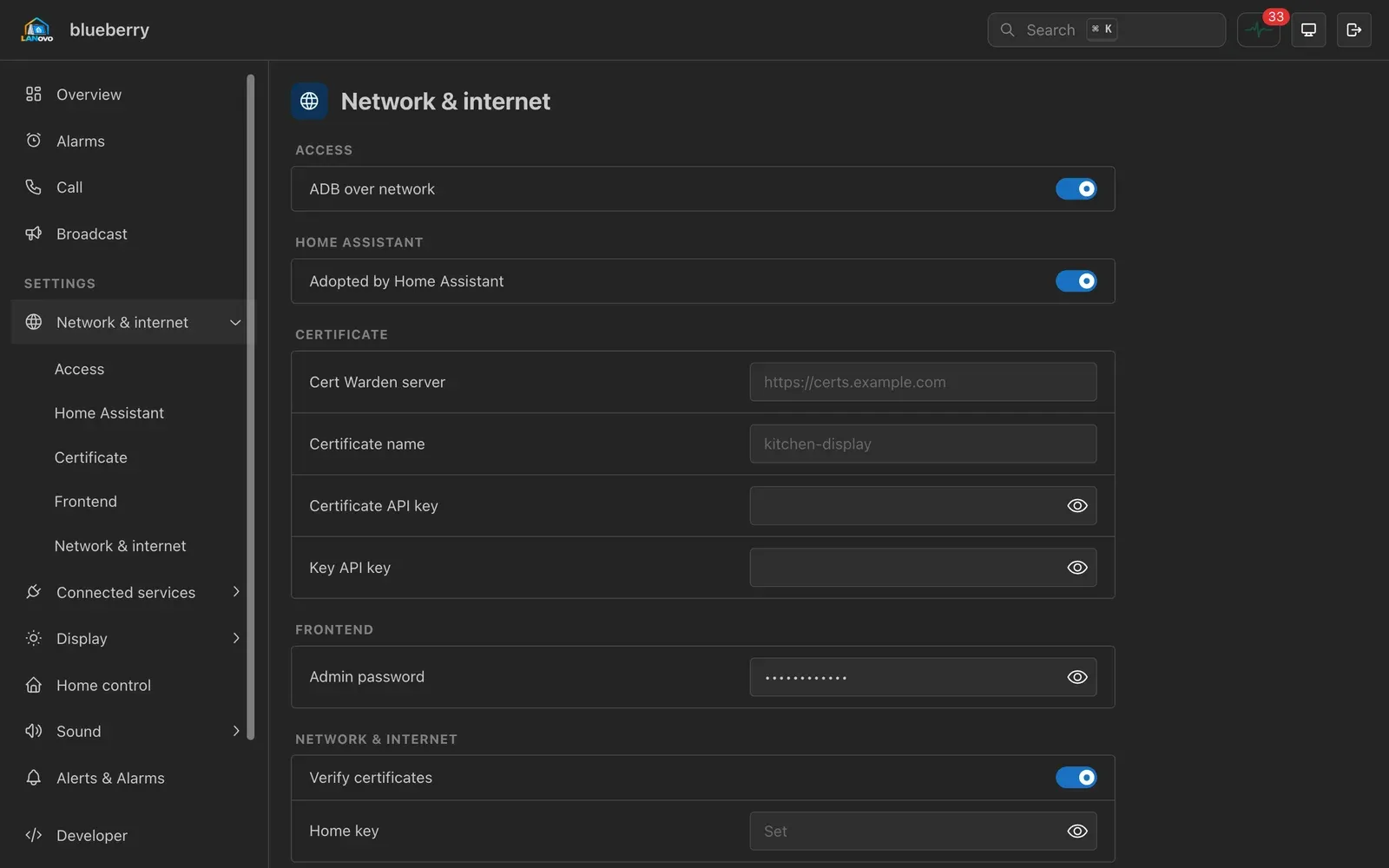
To get rid of the warning, give the display a real certificate from Cert Warden. Set these on the Network & internet page in the browser, or in Home Assistant:
| Setting | What it is | Entity |
|---|---|---|
| Cert Warden server | Cert Warden’s address, like https://certs.example.com. A bare host name means https:// |
text.<device>_frontend_cert_warden_server |
| Certificate name | The certificate’s name in Cert Warden | text.<device>_frontend_cert_warden_certificate_name |
| Certificate API key | The certificate’s API key | text.<device>_frontend_cert_warden_certificate_api_key |
| Key API key | The private key’s API key | text.<device>_frontend_cert_warden_key_api_key |
The Certificate sensor (certificate_status), also shown on Web access, says how it went:
Self-signed, Fetching, the certificate’s name and expiry date, Wrong API key, Can’t
reach Cert Warden or Expired.
Settings
Section titled “Settings”The sidebar has the same pages as the Settings menu on the screen, with the same names; open one to jump between its sections. Passwords, PINs and keys stay hidden until you tap the eye, and empty text fields show an example of what goes in them. Switches and lists save as soon as you change them; text saves when you press Enter or leave the field.
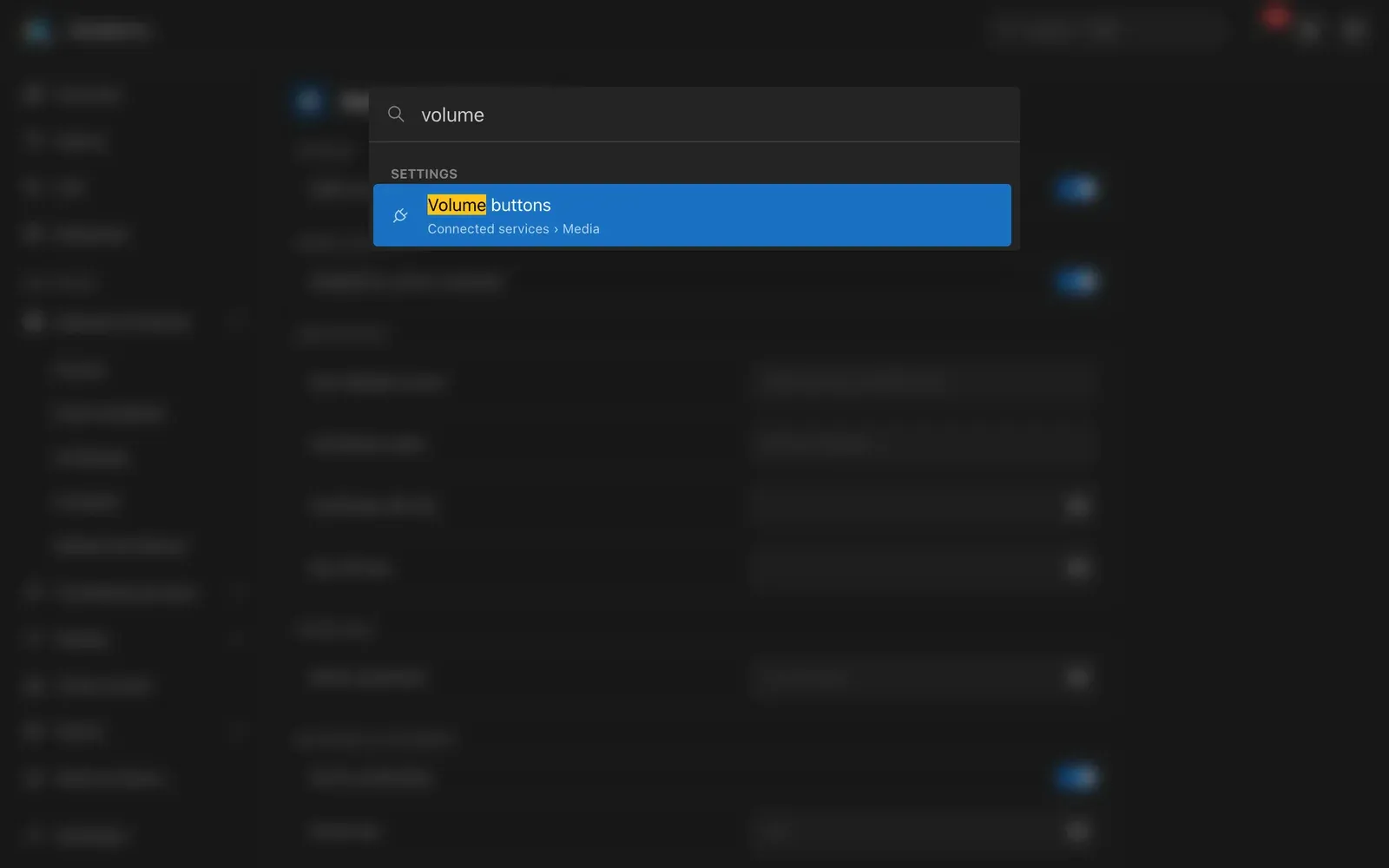
Search (⌘ K, or Ctrl K) finds any setting by name.
The pulse button at the top opens Events: settings and readings as they change, newest first. The screen button picks Light, Dark or Auto, which follows the computer.
Overview
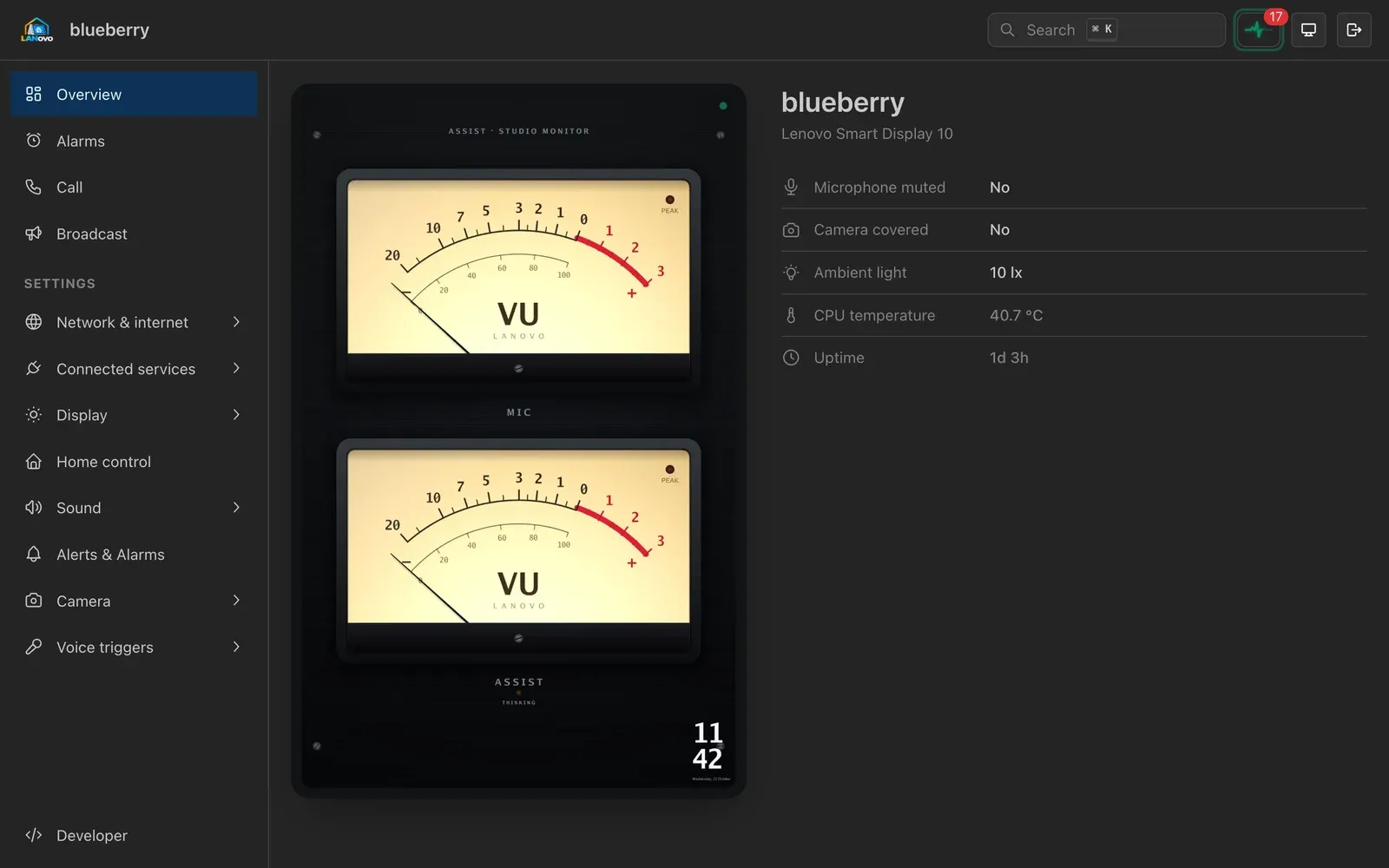
Section titled “Overview”The display’s name and model, with what it’s doing: whether the microphone is muted and the camera covered, the light in the room, the call in progress, what’s playing, the temperature and how long it has been running. Each line appears when the display has it. Until Home Assistant has adopted the display, an Add to Home Assistant button opens Home Assistant’s ESPHome setup.
Beside them is the screen as it looks right now, refreshed every three seconds while the page is open.
Alarms
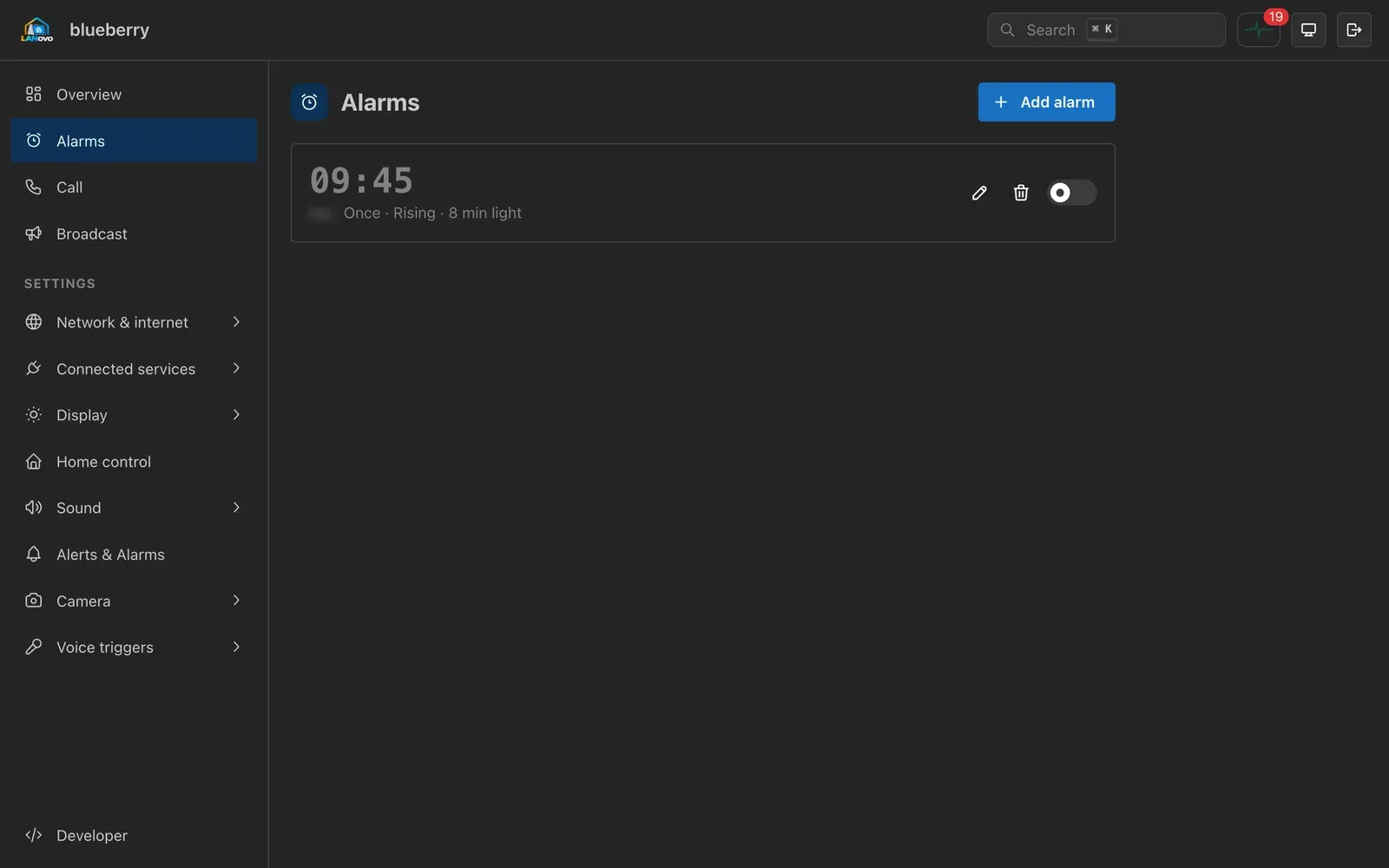
Section titled “Alarms”The display’s alarms: add one, change it, turn it on or off, or delete it. Each has a time, the days it repeats, a sound, snooze, volume and a wake light.
From this browser calls the display, with audio or video, using the computer’s microphone and camera. The browser asks for them the first time. From the display lists the other devices in this home: call any of them from the display, as if you’d tapped it in Intercom. Answer, mute and hang up from the same page.
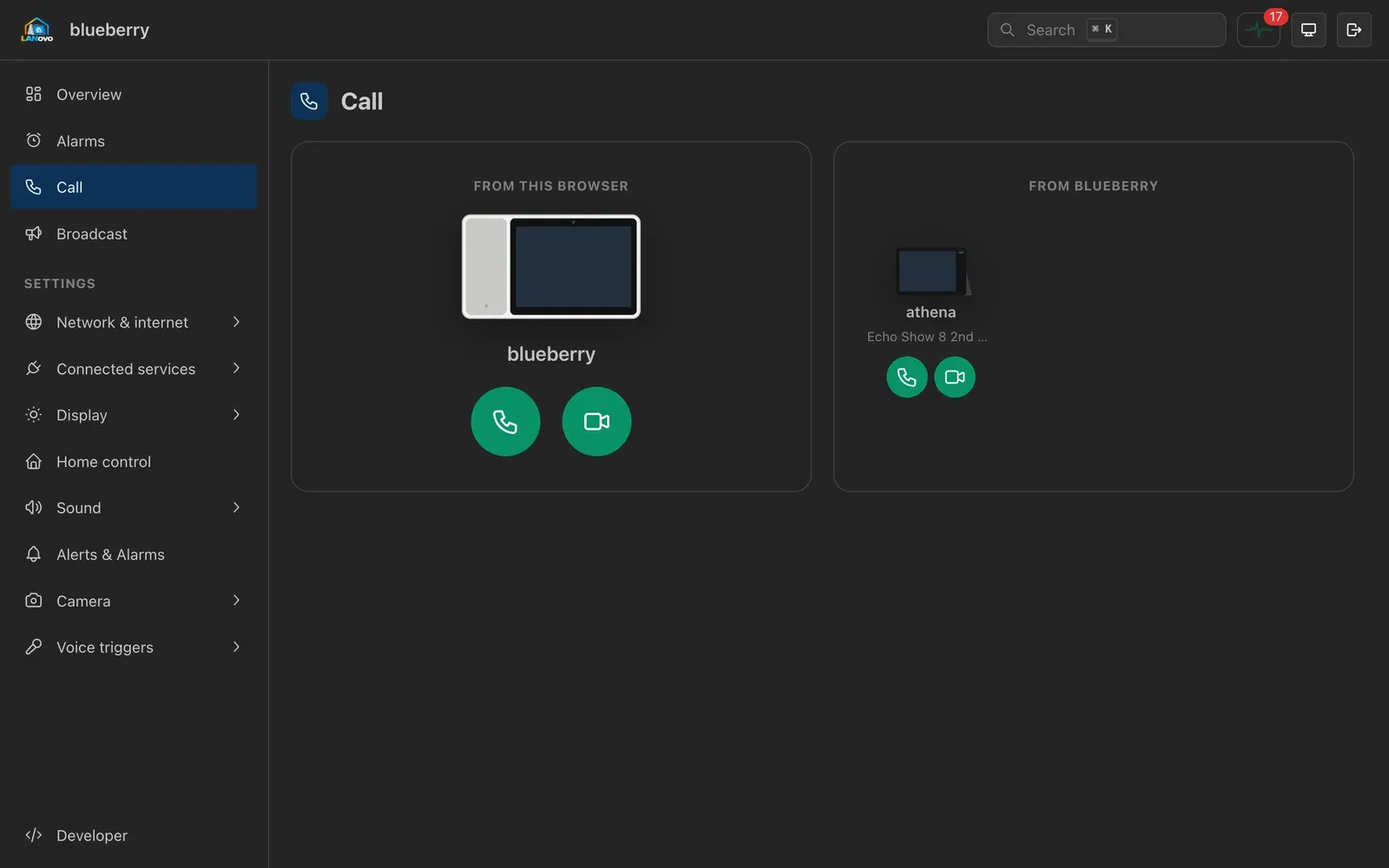
A call from the browser shows up on the display as API. It’s answered automatically only with
Auto-answer on, and, when Answer from is Selected, Auto-answer API calls
(call_answer_api) on as well.
Broadcast
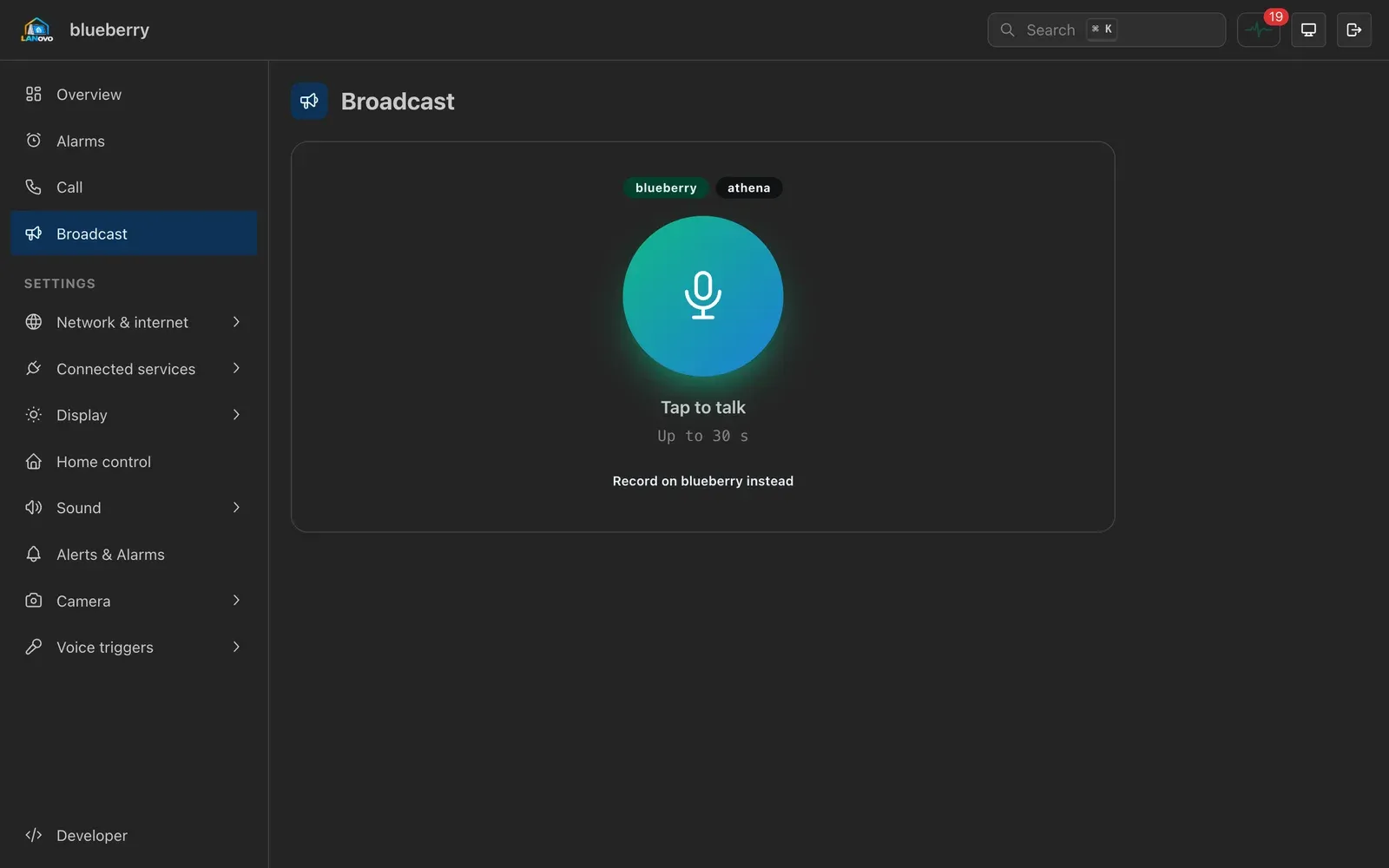
Section titled “Broadcast”Tap the button, talk, and tap it again to send, up to 30 seconds. The message plays on this display and on every other device in this home, like a broadcast said to the assistant. Record on the display instead has you speak to the display after its tone; it sends when you stop talking.
Developer
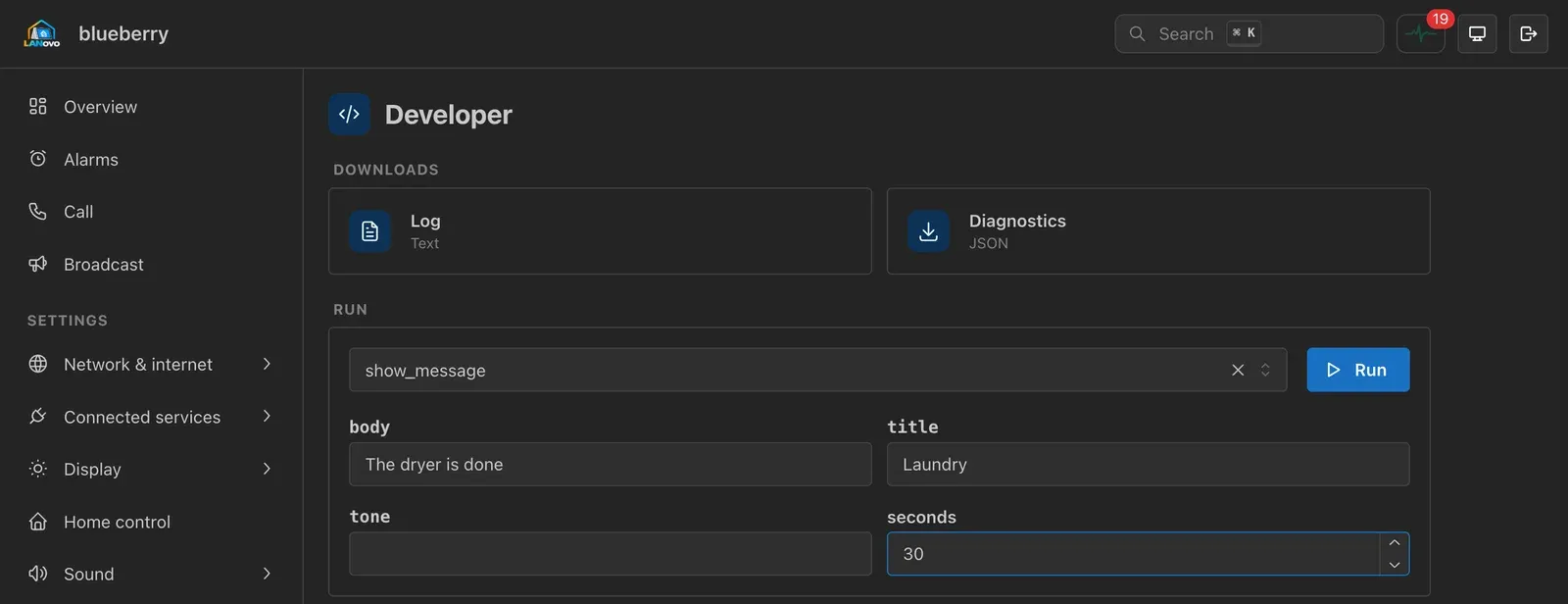
Section titled “Developer”- Log and Diagnostics download the display’s log and a JSON file of every entity with its current value. Attach both to a bug report; check them for anything you’d rather not share first.
- Run calls any of the display’s actions, the same ones Home Assistant has: pick or type one, fill in its fields, and run it. An action that answers shows the answer below.
- Readings lists every sensor with its current value. Type in Filter to find one.
Everything the page does goes through /api/v1/ on the same address, so a script can do it too.
Sign in one of two ways:
- Basic authentication on every request, with the admin password. The username is ignored.
- A token:
POST /api/v1/loginwith{"password": "…"}answers{"token": "…"}. Send it asAuthorization: Bearer …. It lasts 30 days. Changing the admin password ends every token.
Wrong passwords count toward the same lockout as the page. Add -k to curl while
the display has its own certificate.
| Request | Does |
|---|---|
GET /api/v1/device |
Name, model, board and version |
GET /api/v1/settings |
Every setting, grouped by domain, with its value |
GET /api/v1/settings/{domain}/{name} |
One setting |
PUT /api/v1/settings/{domain}/{name} |
Change it: {"value": "…"}, always a string. Answers with the setting as saved |
GET /api/v1/entities |
Every entity: id, kind and details such as its name and unit |
GET /api/v1/states |
Every entity’s current value |
GET /api/v1/events |
A WebSocket of values as they change |
GET /api/v1/actions |
The actions and their fields |
POST /api/v1/actions/{name} |
Run one: {"args": {…}}. Answers {"answer": …} |
POST /api/v1/buttons/{id} |
Press a button entity |
GET /api/v1/screen |
The screen as a JPEG |
GET /api/v1/logs, GET /api/v1/diagnostics |
The Log and Diagnostics downloads |
The domain and name are the ones GET /api/v1/settings lists, like screen and backlight.
Values are written the way it shows them: on or off for a switch, a number as text, and a
choice’s id rather than its label.
To put a message on the screen:
curl -k -u :PASSWORD -X POST https://192.168.1.50/api/v1/actions/show_message \ -d '{"args": {"title": "Laundry", "body": "The dryer is done", "seconds": 30}}'