The EchoLocal integration
The EchoLocal integration was made for LANovo’s sister project, EchoLocal, and works with LANovo displays too. One integration covers both: Lenovo Smart Displays and Echo devices share its dashboard, cards and Fleet, side by side.
The display works in Home Assistant without this. The integration is an optional companion that adds:
- A card for each display, with its settings and controls laid out by area
- A dashboard in the sidebar with every display, plus wake words, activity, groups, tones and health
- Fleet, which compares every device’s settings with one of them and copies settings across
- What the ESPHome integration can’t do on its own: a shared wake word library, custom tones and recordings of each turn
- Voice actions such as “call the kitchen” and “broadcast dinner is ready”, and live video in the Cameras app
- Calls to a display from a dashboard
Install
Section titled “Install”Needs Home Assistant 2026.8 or newer.
-
In HACS, open ⋮ → Custom repositories, add
https://github.com/ygelfand/echolocal-hacswith the category Integration.
-
Install EchoLocal, then restart Home Assistant.
-
Settings → Devices & services → Add integration → EchoLocal.
Its only option is Show the EchoLocal dashboard in the sidebar. Change it later from the integration’s Configure.
The card
Section titled “The card”Each card is drawn like its display, Smart Display 10, 8 or 7, JBL Link View or ThinkSmart View. The buttons beside it open a panel of settings for each area: playback, screen, posters, camera and each assistant. Every setting has a ? beside it that says what it does. The screen shows the display’s clock in its theme and brightness, and the bar along its bottom edge lights while the assistant listens and replies. The phone button calls the display.
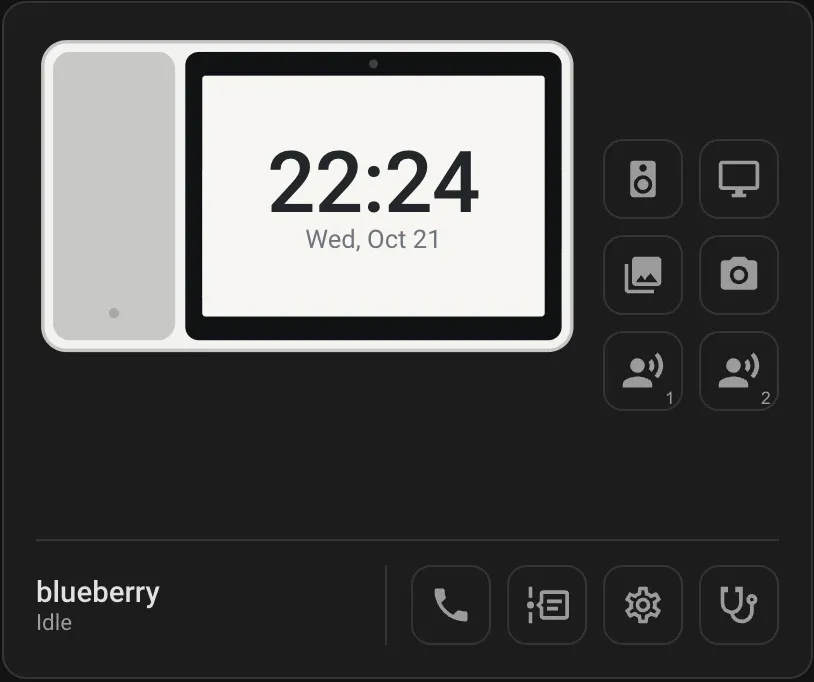
Add one to any dashboard: Edit dashboard → Add card → EchoLocal Satellite, then pick the device.
type: custom:echolocal-satellite-carddevice_id: 0123456789abcdef0123456789abcdefhelp: true| Option | Does |
|---|---|
device_id |
The display |
help |
Show the ? beside each setting. On by default |
The dashboard
Section titled “The dashboard”EchoLocal in the sidebar.
Every display’s card on one page, or one section per group. Each group’s bar has Mute all, Ring and Stop where its devices have them, which act on every device in it. If only some of them take it, the bar says how many did.
Activity
Section titled “Activity”Every turn a device reports: what woke it, what it heard, what it answered, and how long listening, thinking and replying took. Where a recording was kept, play back what the microphones sent. How many recordings each assistant keeps is in its panel on the card.
Wake words
Section titled “Wake words”Which device listens for what, and the wake word library every device can use. Drop a microWakeWord
.tflite file onto the tab to add it; it’s offered to every display straight away, with no
restart. The library lives in Home Assistant’s config/custom_wake_words/.
Groups
Section titled “Groups”A table of devices against groups. Tick a box to put a device in a group, rename a group in its heading, or add and delete groups. Groups are Home Assistant labels, so they also work in automations and in Home Assistant’s own filters.
Compare every device’s settings with one of them, and copy settings from it to the others. Only administrators see this tab. LANovo displays and EchoLocal devices appear in the same table; a setting one of them doesn’t have shows as not applying.
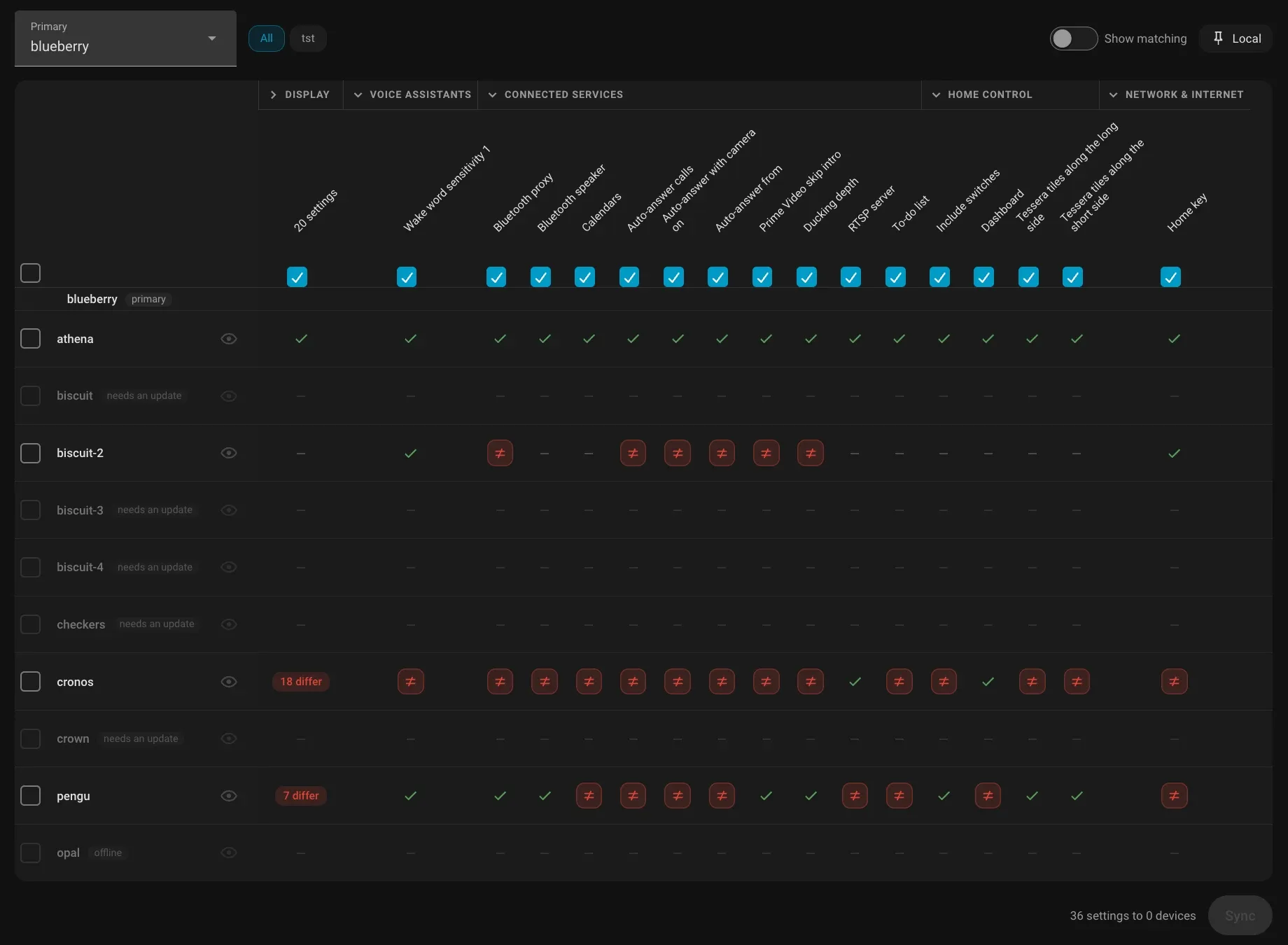
- Primary is the device the others are compared with.
- Each setting is a column, grouped by section, and each device a row. A cell says whether the device matches the primary, differs from it, or doesn’t have that setting, such as a screen setting on an Echo Dot.
- With Show matching off, only the settings that differ on some device are shown.
- Collapse a section to a single column that counts how many settings differ. Its checkbox ticks or clears the whole section.
- The pills above the table limit it to the devices in one group.
- The eye beside a device leaves it out of the comparison until the page is reloaded.
- Local is a list of settings that are never synced, for ones you want to keep different on each device. Search it and tick a setting to add it.
To copy, tick the settings and the devices, then press Sync. Each device’s row then says how many settings changed, or what went wrong.
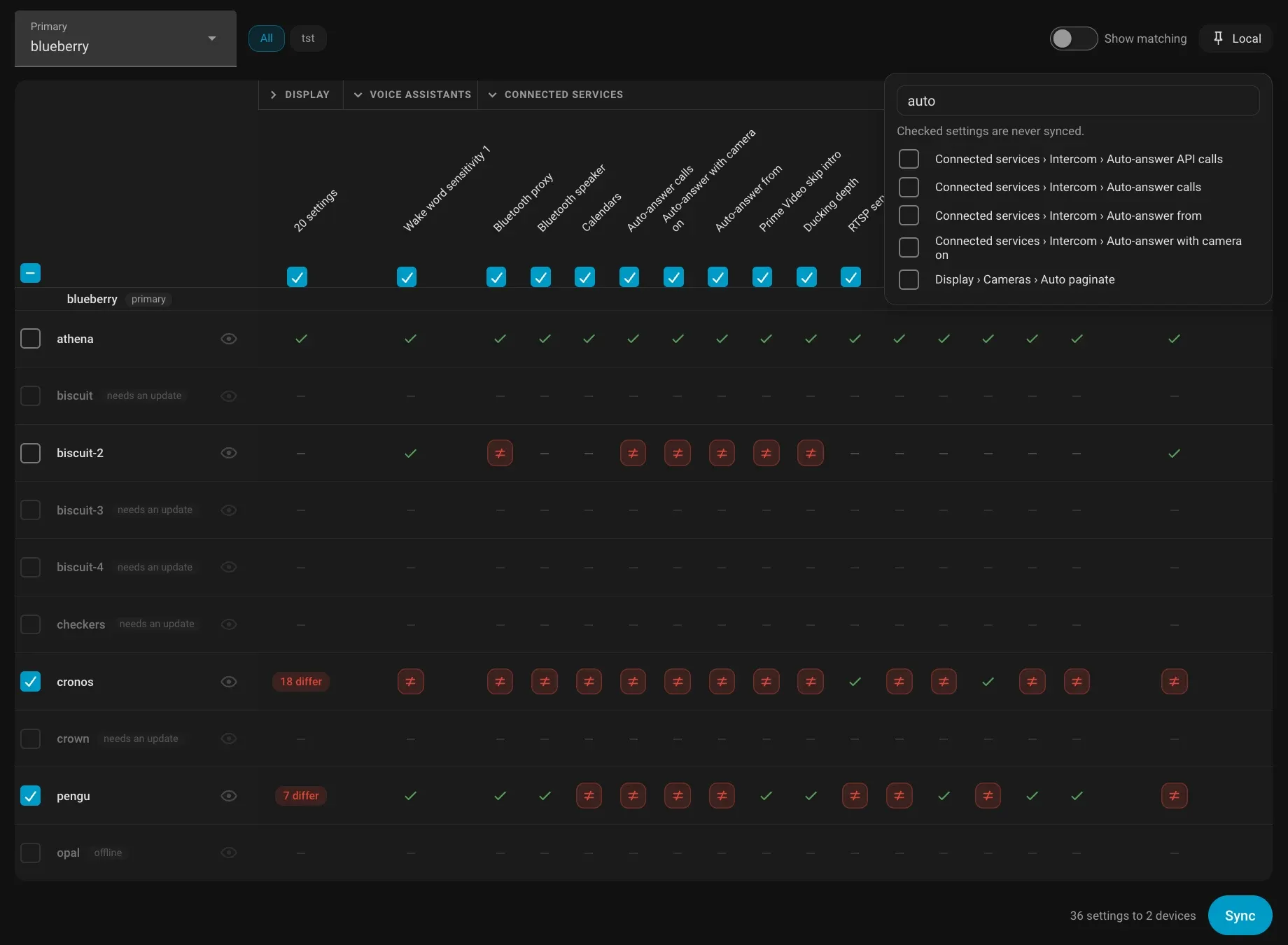
Each assistant’s pipeline and wake word are compared and set through Home Assistant’s own selects. A device on firmware from before Fleet shows needs an update and can’t be synced; an offline one is greyed out.
Upload a sound, tidy it up, and send it to devices. It then shows up in their sound pickers for chimes, timers, alarms, rings and the wake tone. See Custom tones.
Health
Section titled “Health”One row per device: version, update status, Wi‑Fi signal, CPU temperature, load, memory, disk and address.
Actions
Section titled “Actions”| Action | Does |
|---|---|
echolocal.assign_tone |
Send a tone from the library to devices (tone, device_id) |
echolocal.unassign_tone |
Remove a tone from devices; it stays in the library |