
Home alarm
The Home alarm app shows an alarm panel from Home Assistant: its state, buttons to arm and disarm, a keypad for the code, and the doors, windows and sensors that belong to it. It can also take over the screen when the alarm goes off or the entry delay starts.
Set it up
Section titled “Set it up”Open Settings → Home control → Home alarm and pick the panel under Alarm panel. If Home Assistant has only one alarm panel, it is selected automatically. Enable home control and Allow the device to perform Home Assistant actions in the display’s ESPHome integration options.
Using it
Section titled “Using it”- Arm buttons appear while the alarm is disarmed, one for each mode the panel supports: Home, Away, Night, Vacation and Bypass. Disarm appears while it’s armed, arming, in its entry delay or triggered.
- If the panel needs a code, enter it on the keypad. The Keypad and Vault looks have the keypad on the screen; the others ask for it when you press a button.
- Hold Emergency (or Panic) to trigger the alarm. A tap only shows Hold to trigger. It shows when the panel can be triggered from Home Assistant. If the panel’s Home Assistant device has its own buttons, such as fire or medical, those appear instead.
- Zones are the door, window, motion, smoke, water and similar sensors on the panel’s Home Assistant device. While disarmed with zones open, it shows Not ready and which zone is open. Hide zones under Zones shown.
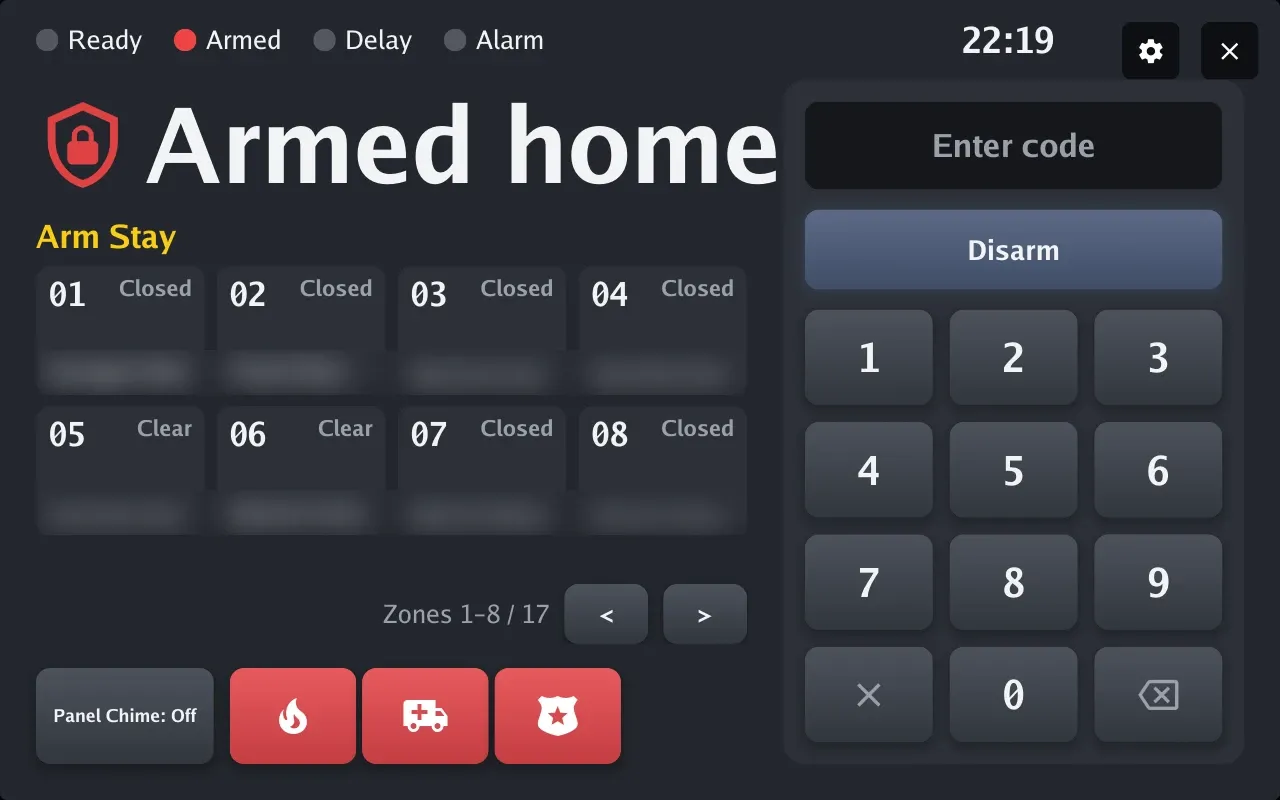
Look (homealarm_look) picks one of 14 designs: Keypad (the default), Shield, Card, Ring, Dial,
Neon, Hardware, Flip board, Terminal, Console, Blueprint, Matrix, Vault and Minimal. The picker
shows each one with the panel’s current state.
The examples use rehearsal data, with two open zones. Private zone names are blurred.
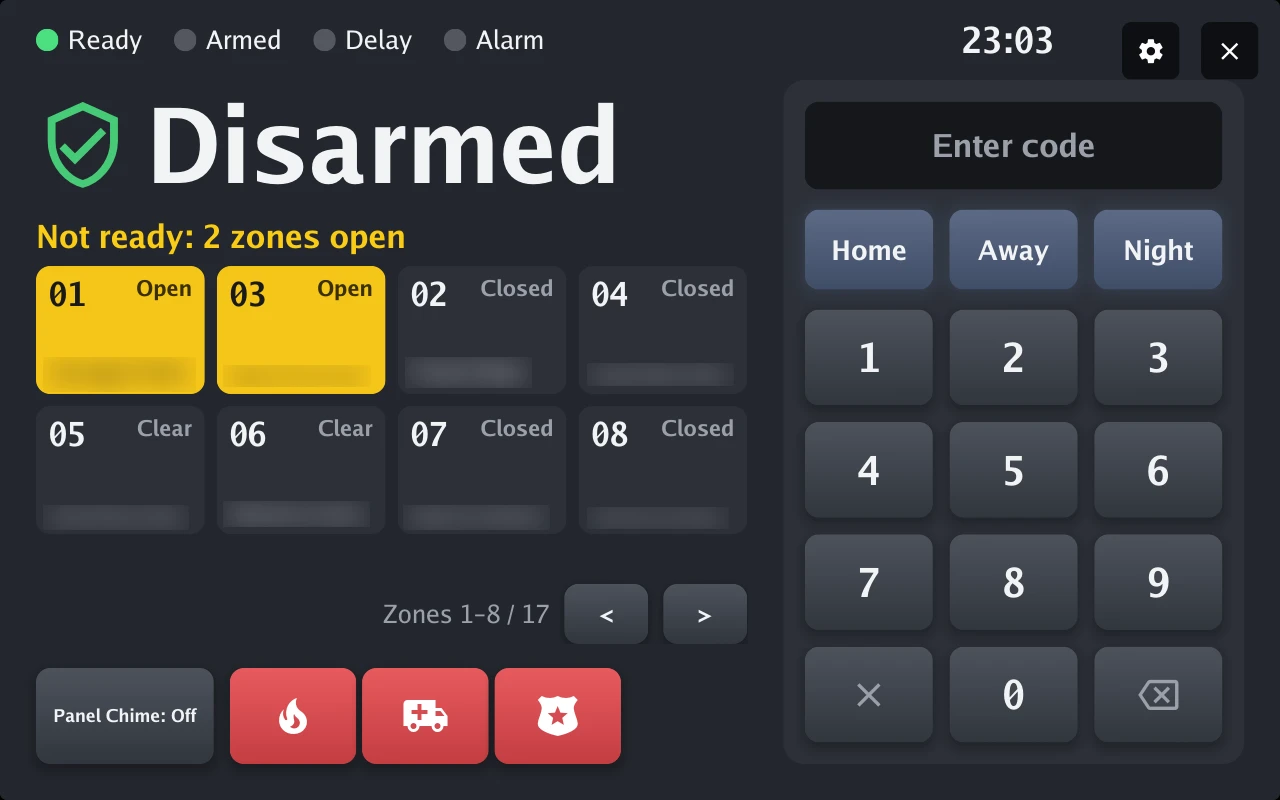
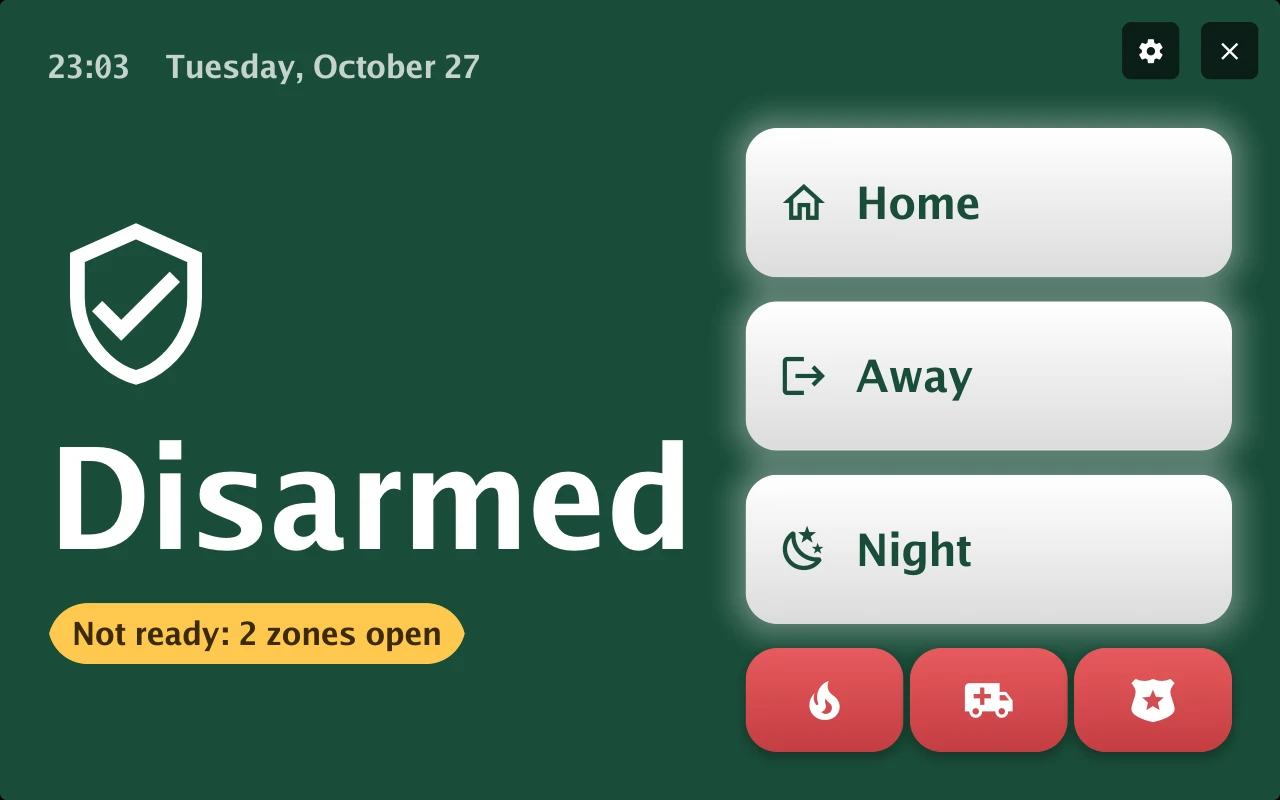
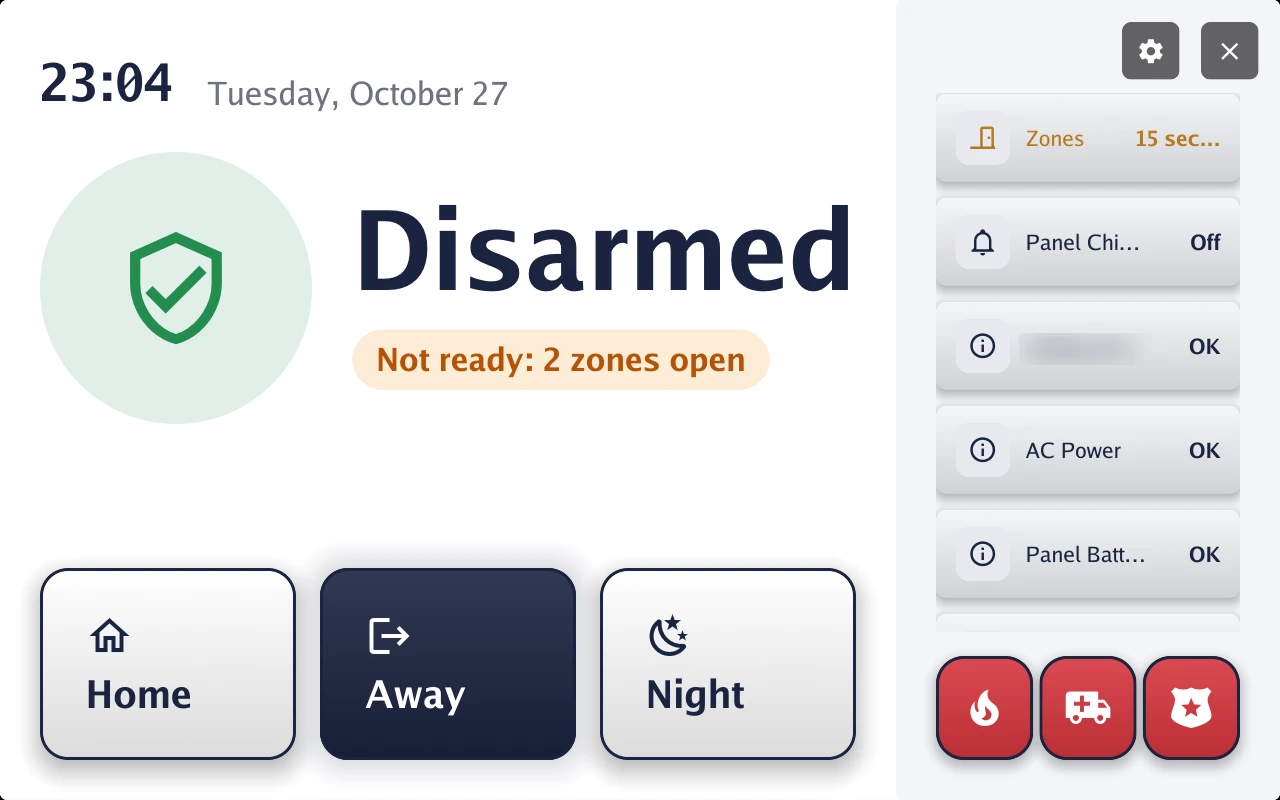
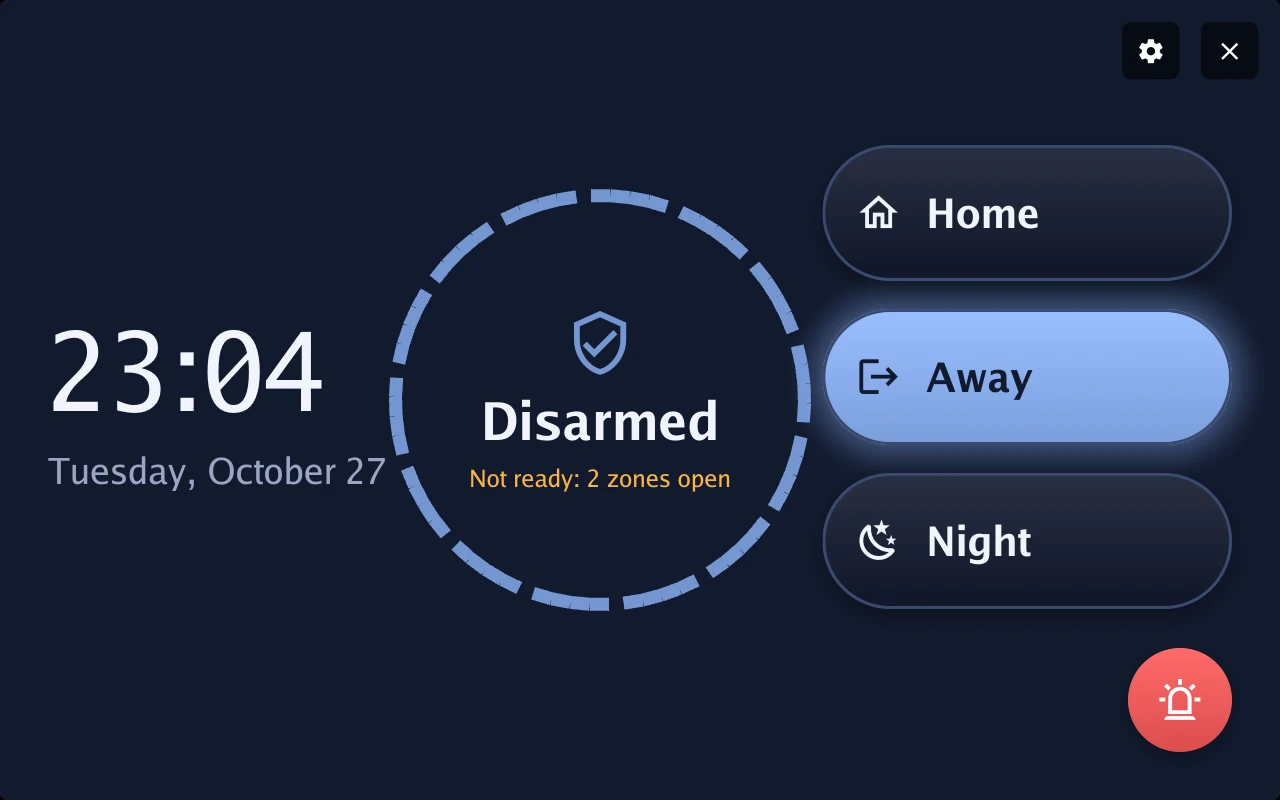
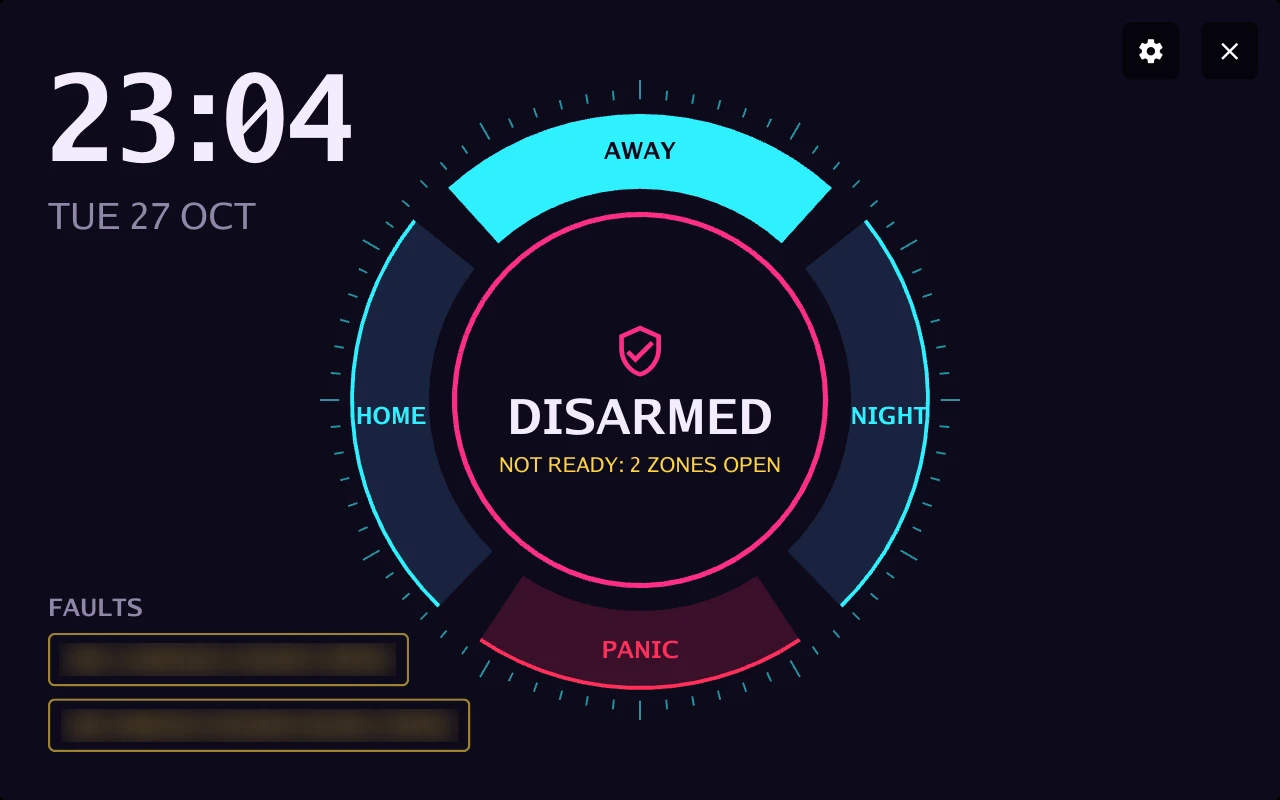
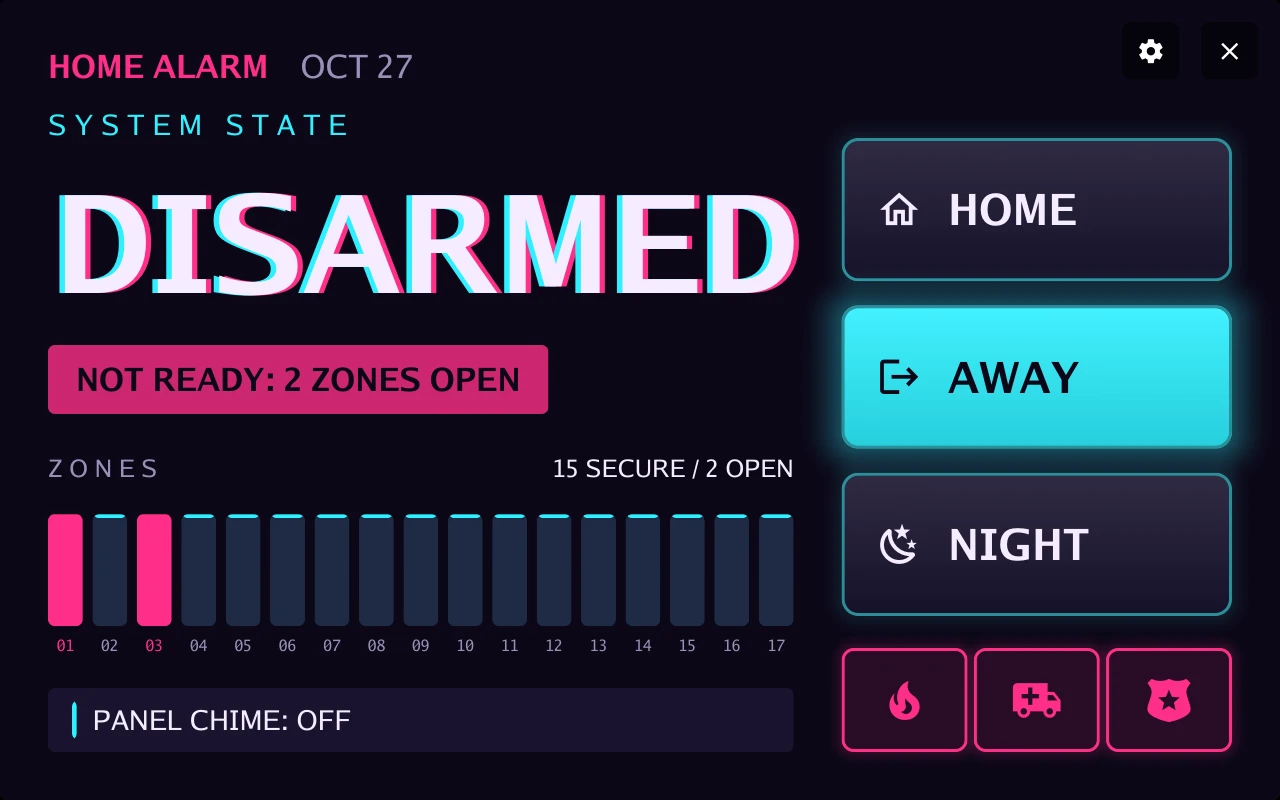
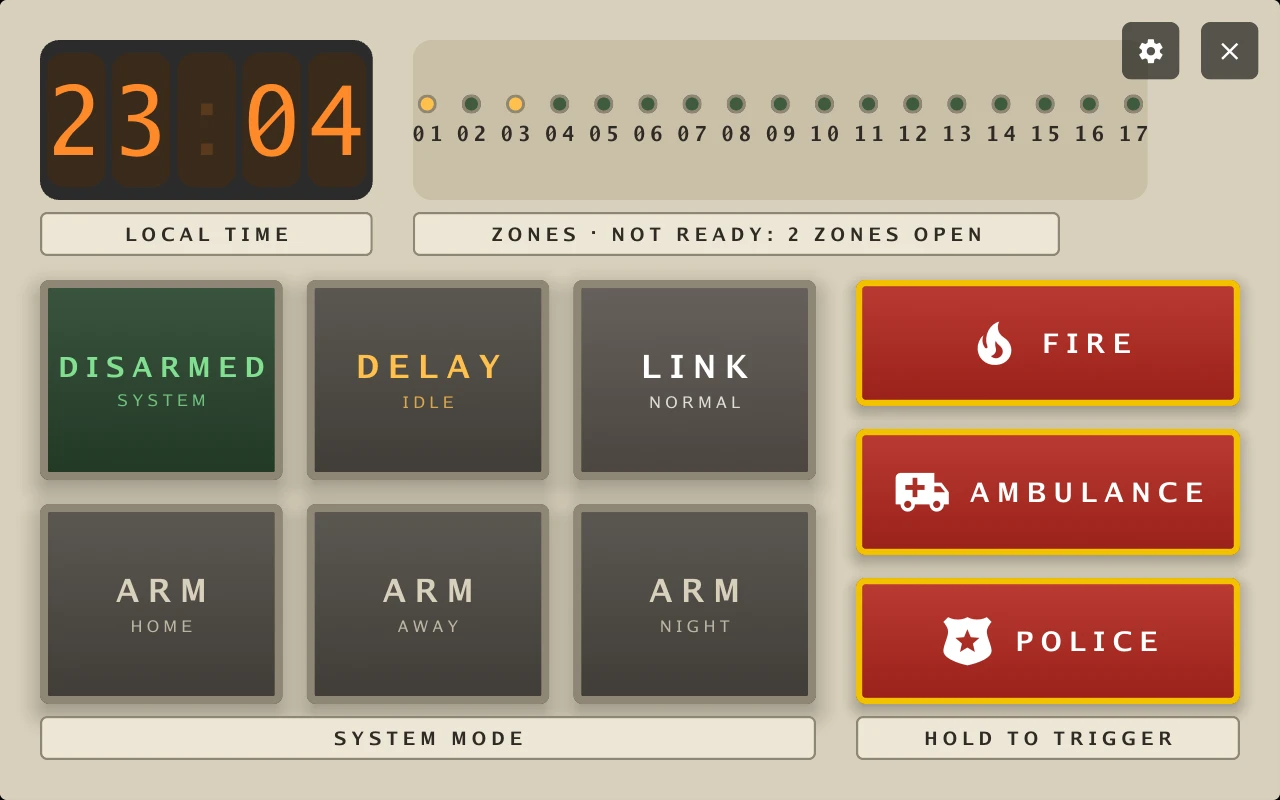
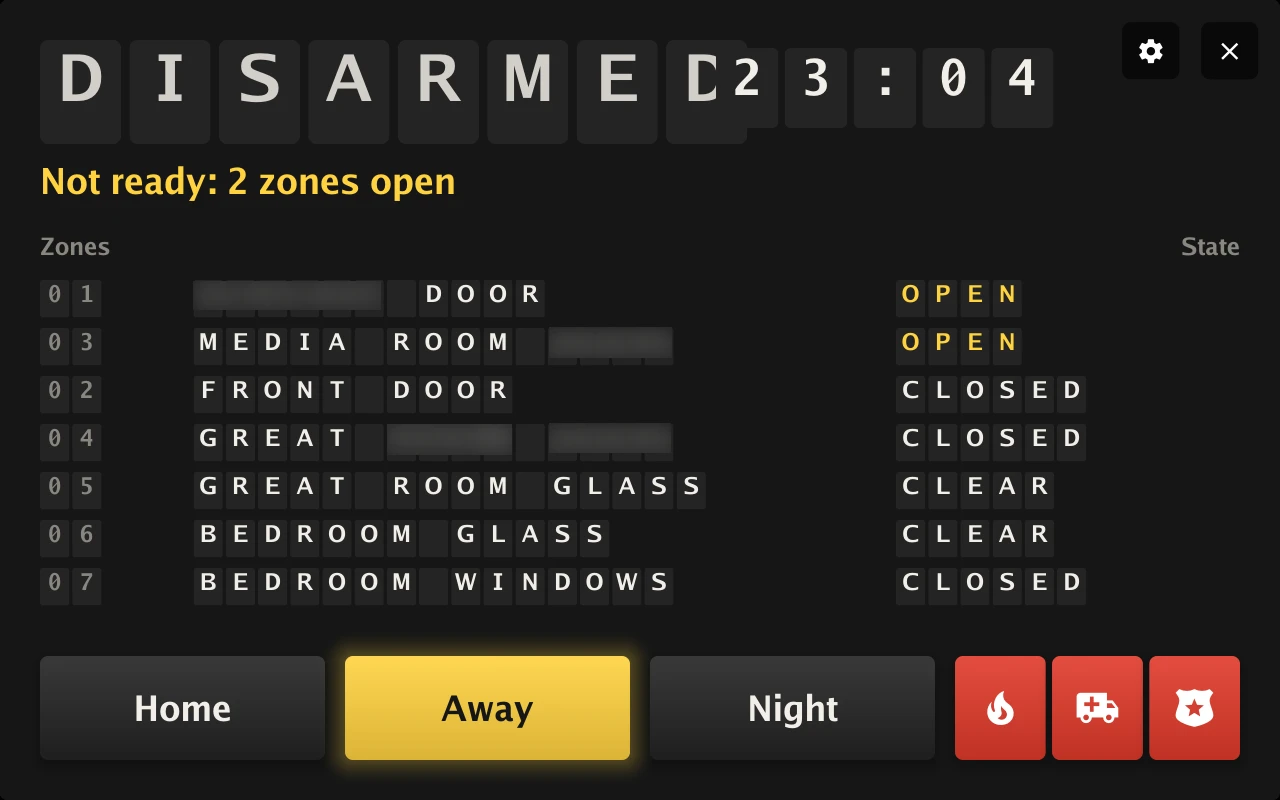
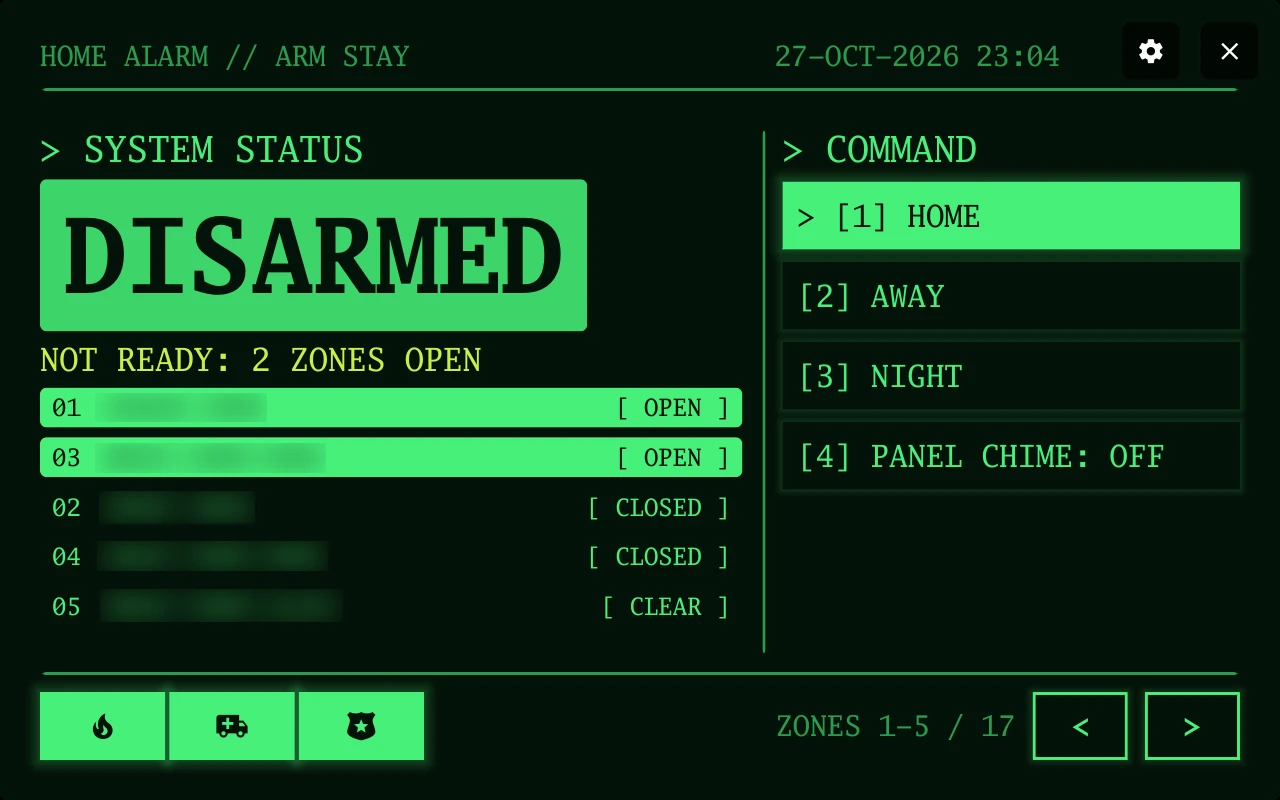
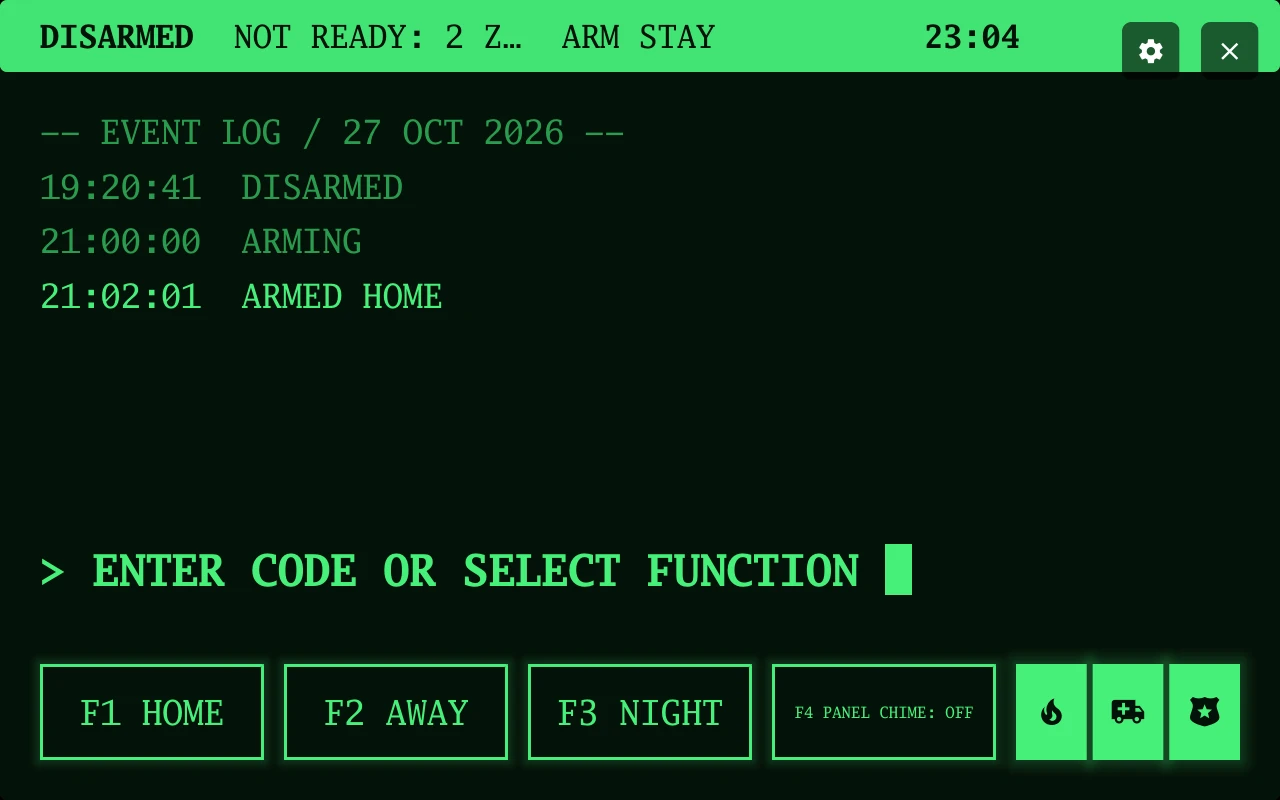
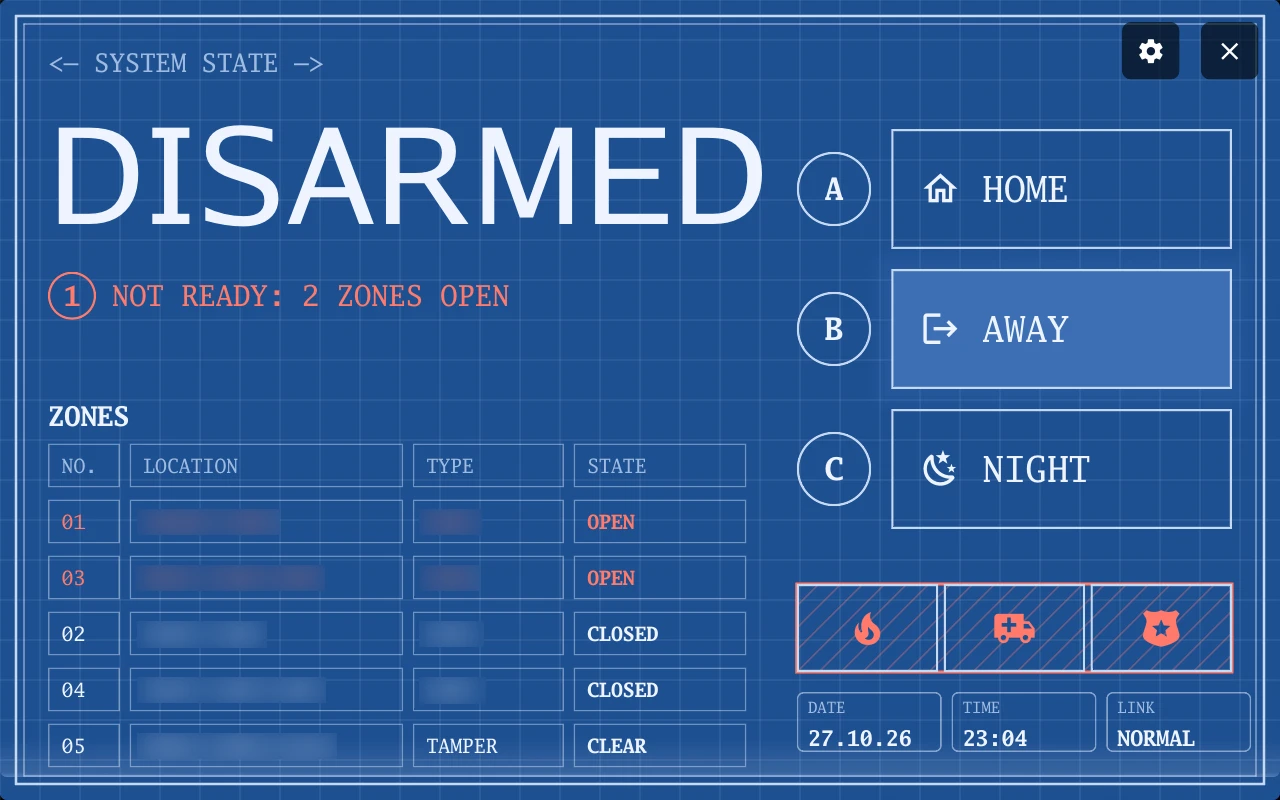
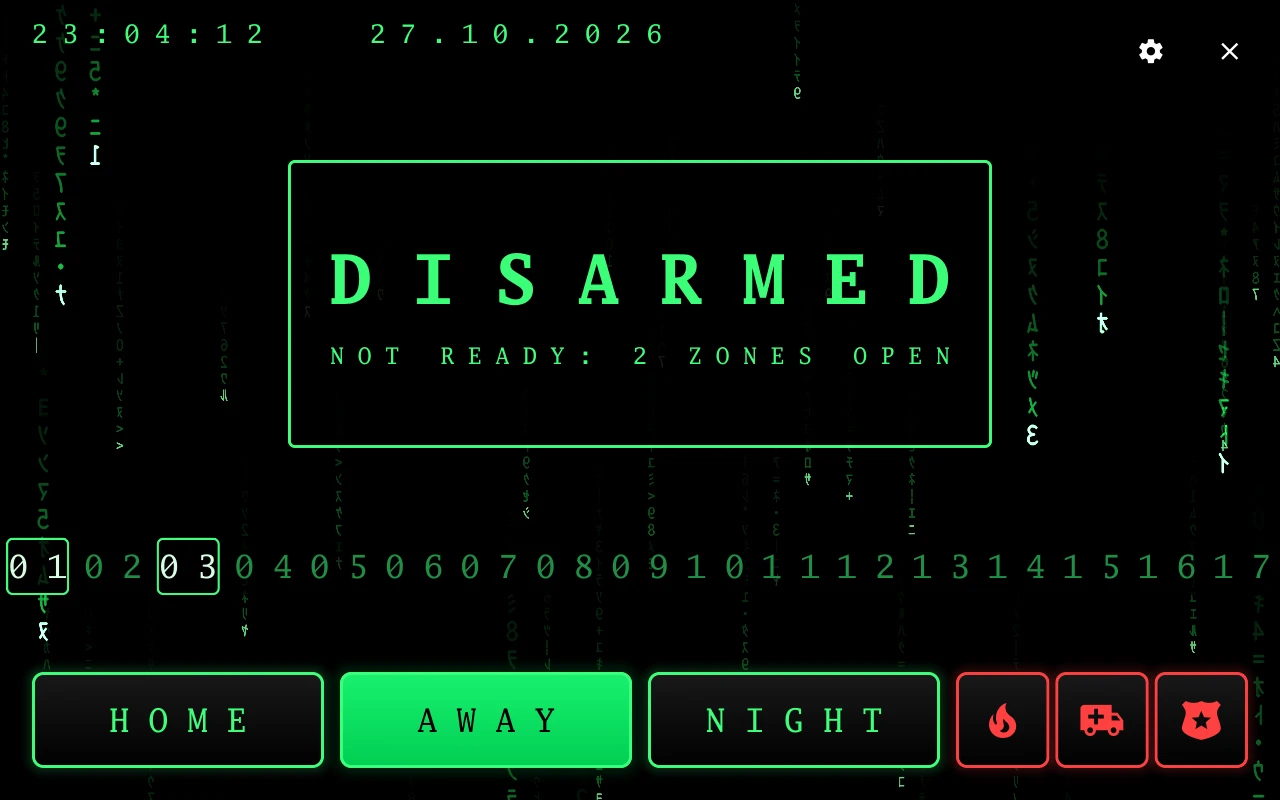
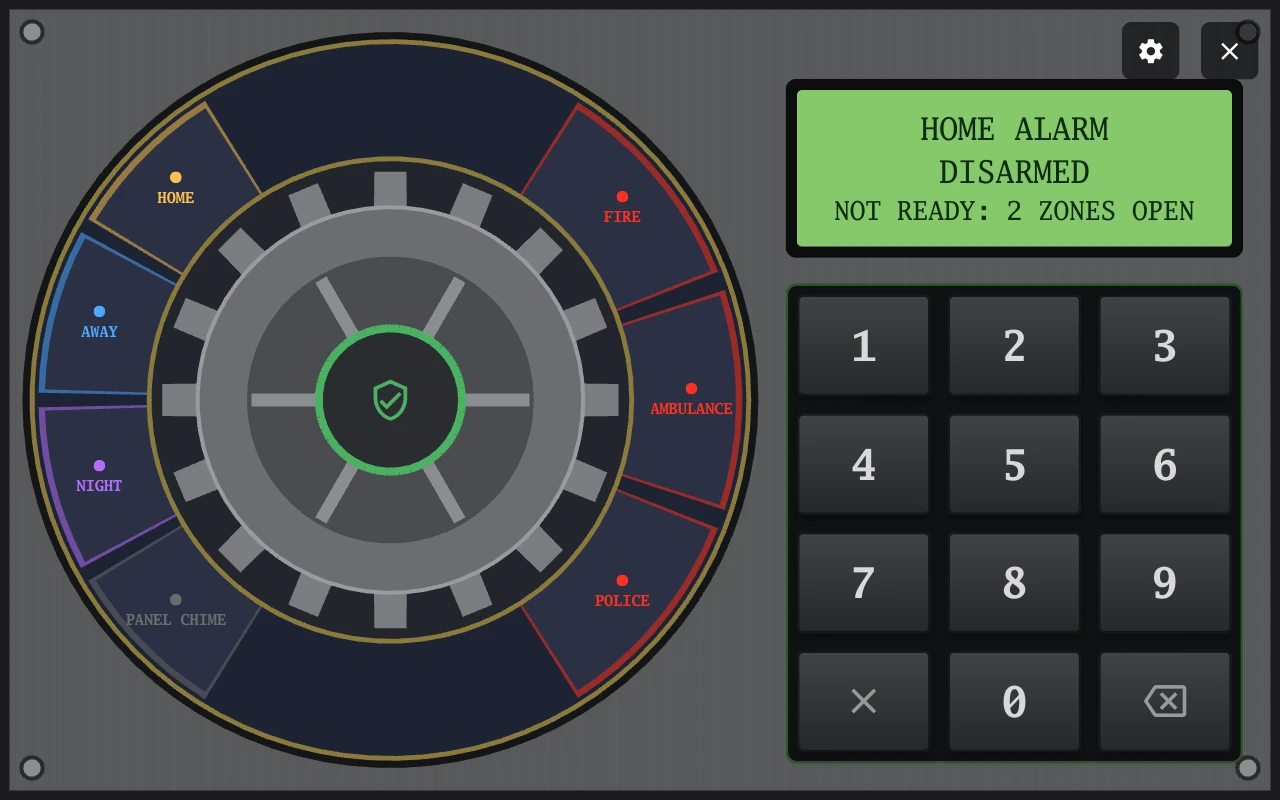
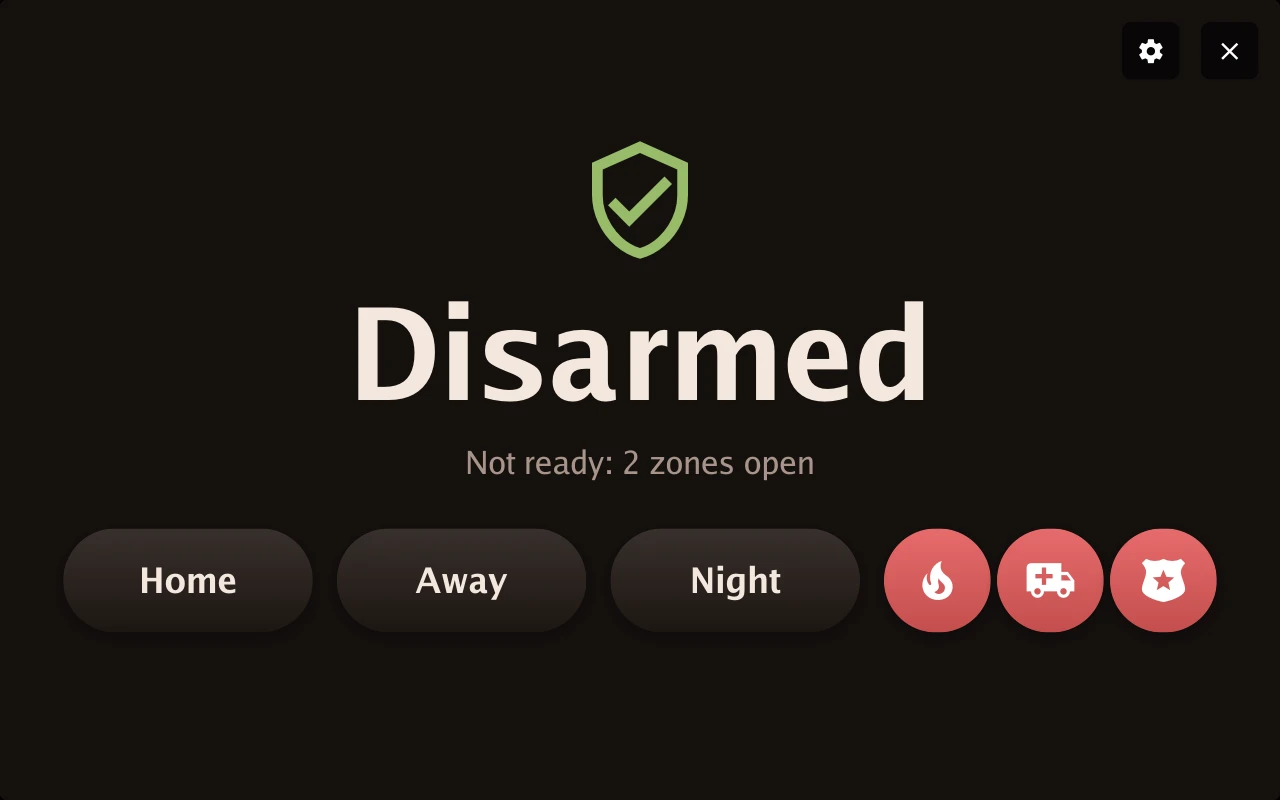
Home alarm’s Look is separate from the display’s style and theme.
Settings
Section titled “Settings”| Setting | Entity | What it does | Default |
|---|---|---|---|
| Alarm panel | — | The Home Assistant alarm_control_panel to show |
|
| Look | select.<device>_screen_home_alarm_look |
The design | Keypad |
| Zones shown | — | Which zones to list | All |
| Dashboard tab | switch.<device>_screen_home_alarm_dashboard_tab |
A Home alarm tab on the native dashboard | Off |
| Show when triggered | switch.<device>_screen_home_alarm_show_when_triggered |
Wake the screen and show the alarm when it goes off | On |
| Triggered sound | select.<device>_screen_home_alarm_triggered_sound |
Repeats until the state changes | Trouble |
| Show during entry delay | switch.<device>_screen_home_alarm_show_during_entry_delay |
Show the alarm during the entry delay | On |
| Entry delay sound | select.<device>_screen_home_alarm_entry_delay_sound |
Repeats until the state changes | Timer |
| Show while arming | switch.<device>_screen_home_alarm_show_while_arming |
Show the alarm during the exit delay | Off |
| Arming sound | select.<device>_screen_home_alarm_arming_sound |
Plays once | None |
| Show when armed or disarmed | switch.<device>_screen_home_alarm_show_when_armed_or_disarmed |
Show the alarm briefly when it’s armed or disarmed | Off |
| Hide after | select.<device>_screen_home_alarm_hide_after |
How long that stays up: 5 s to 2 min, or Never | 5 s |
| Armed and disarmed sound | select.<device>_screen_home_alarm_armed_and_disarmed_sound |
Plays once | None |
The sounds offer the chimes and your custom tones.